User guide · chsdesk.com
CHS Desk for housing societies
The operating desk for Indian housing societies.
What CHS Desk solves, and who it is for
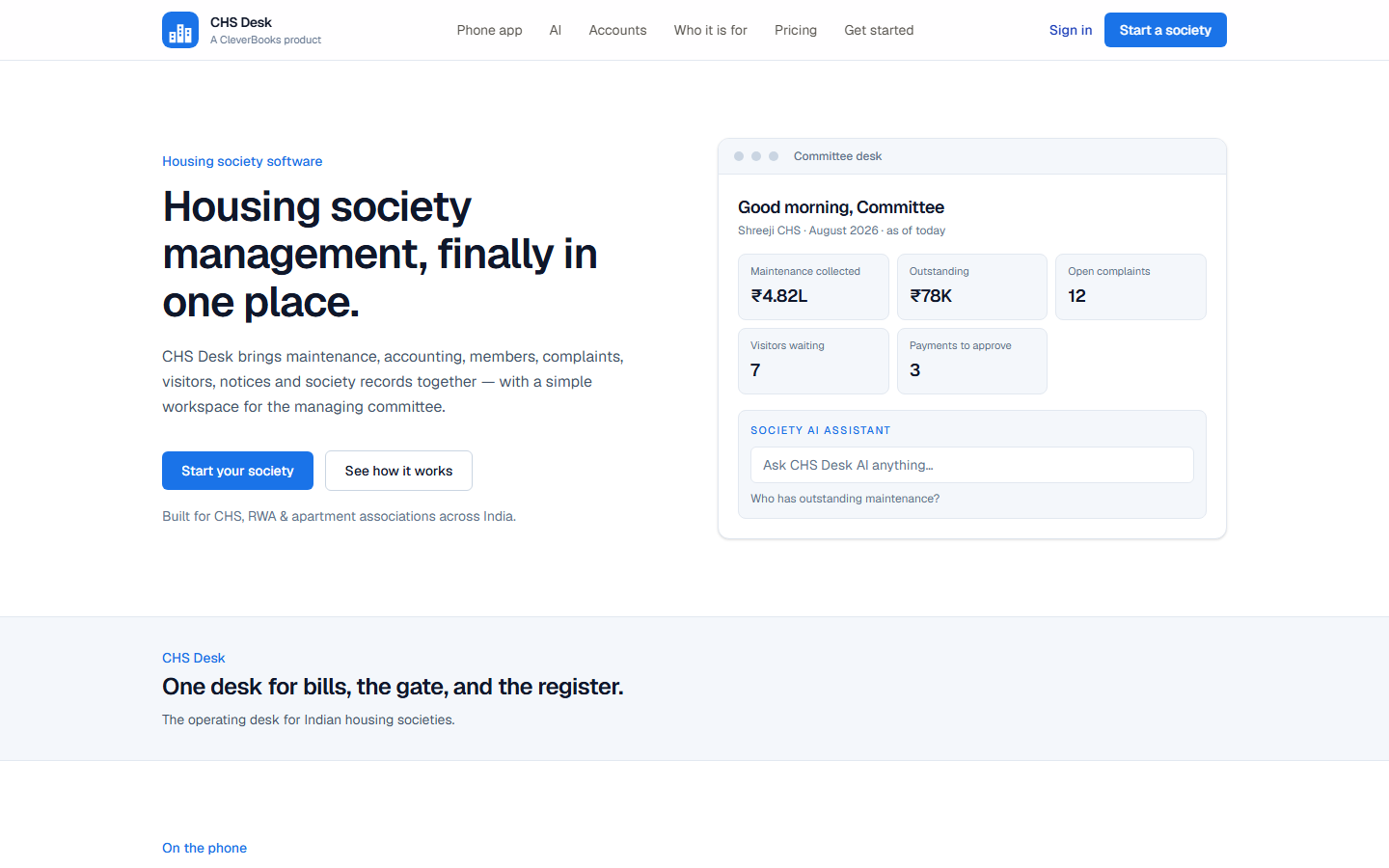
Most societies still run on Excel for maintenance, WhatsApp for complaints and circulars, a paper register at the gate, and files on someone's laptop. CHS Desk replaces that patchwork with one operating desk: members and flats, maintenance bills, the books, visitors, complaints, notices, documents, and audit — with logins that match the post.
It is built for Indian cooperative housing societies (CHS), RWAs, and apartment associations: share certificates, sinking and repair funds, AGM and SGM notices, tenant NOC, UPI on the bill, and Maharashtra financial year books (1 April–31 March).
Managing committee
Chairman, secretary, treasurer, and MC members share one office. Permissions follow the seat, not a shared password.
Residents and tenants
Bills, receipts, visitors, complaints, notices, household. A tenant registers and waits for office approval. The owner stays on the register.
Security
One shared phone at the gate cabin: visitors, vehicles, and daily job alarms. Walk-ups wait for the flat. Campuses can share one gate.
Property manager
Complaints and operational work — without the bank, the member register, or the treasury.
Getting started in 15 minutes
A secretary or treasurer can open a live desk in a quarter of an hour. Maintenance rates, vendors, and WhatsApp can wait until the register is in.
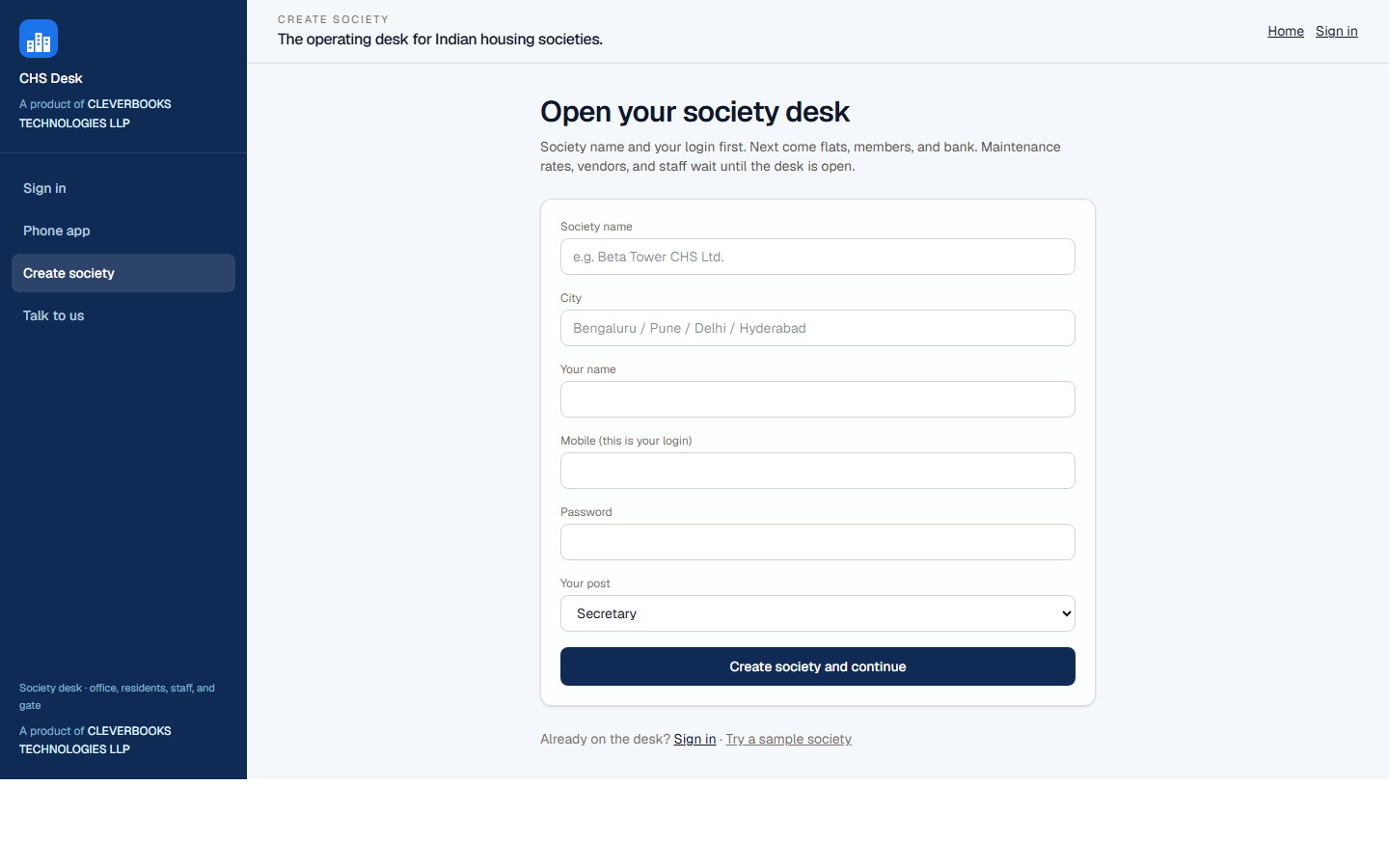
- Minutes 1–3 — Name the society. Open Start a society. Enter society name, city, your name, mobile (this is your login), a password of at least 6 characters, and your post (secretary, treasurer, or chairman).
- Minutes 4–8 — Add flats and names. Upload one CSV: Wing, Flat No, Owner Name, mobile, email, occupancy, and optional flat type. Several wings belong in the same file — A-101 and B-101 are different flats. Or generate numbering (Add another wing if the society has more than one). Download 02_Flats_and_Members.csv from the Flats step.
- Minutes 9–12 — Bank and UPI. On the Accounts step (or Accounts after go-live), set bank name, account, IFSC, opening balances, and the society UPI VPA if residents will pay from the app.
- Minutes 13–15 — Go live. Finish onboarding. Appoint remaining office bearers on Committee. Appoint security on Staff. Tell Android residents to install the app from chsdesk.com/get-app, sign in with their mobile, and allow notifications. iPhone residents open chsdesk.com/m in Safari. Default generated passwords are the society's temporary password until they change it.
Sign in
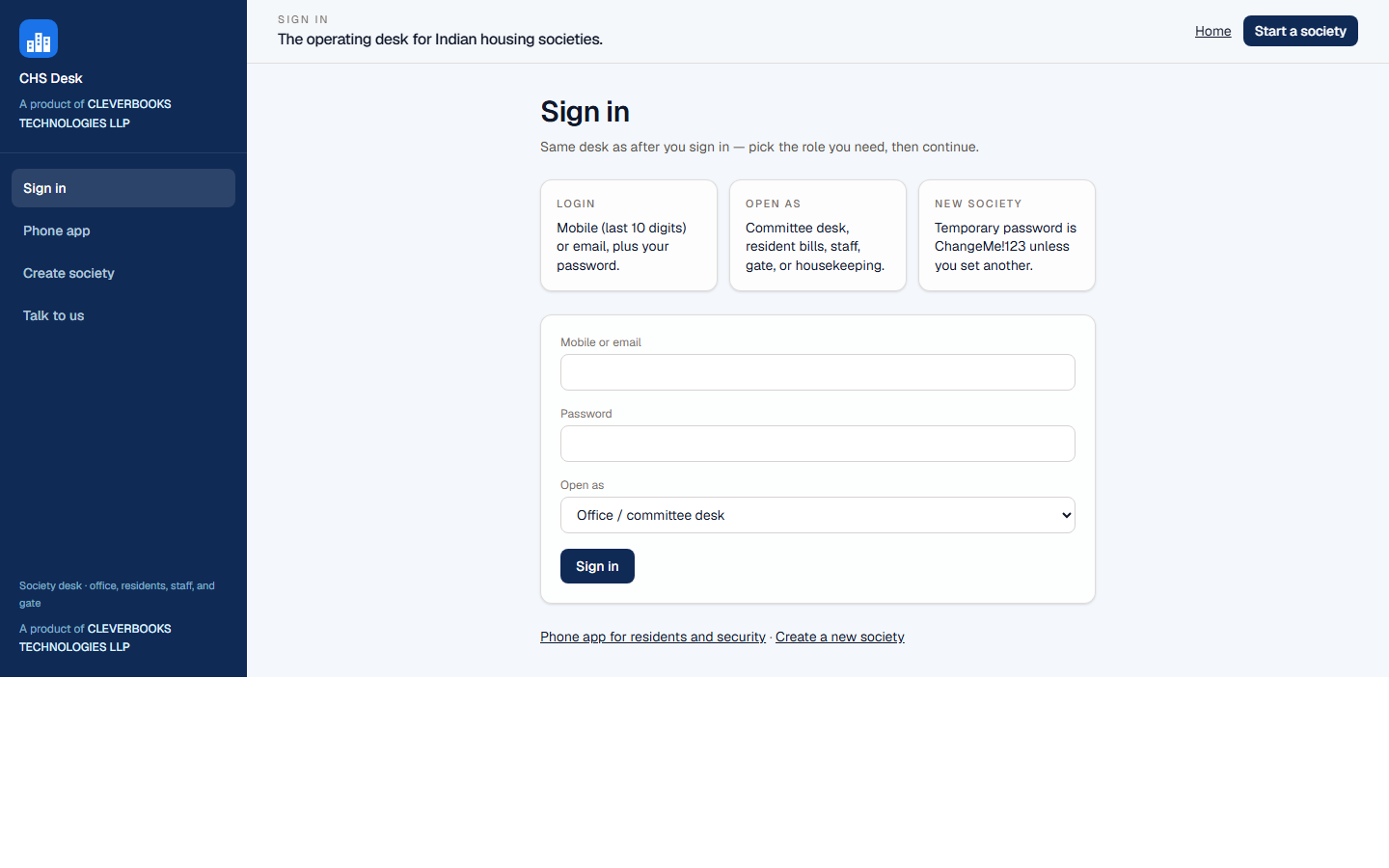
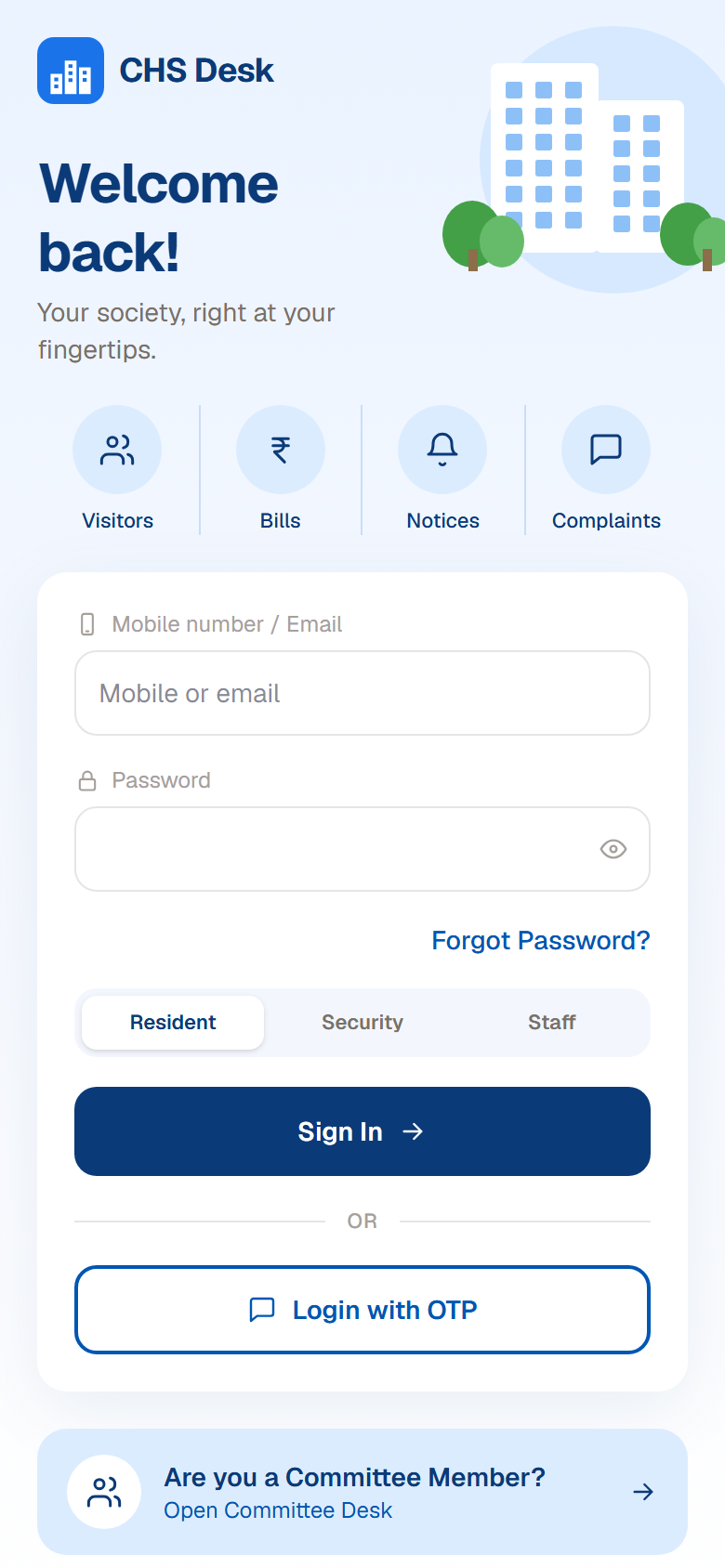
Website: chsdesk.com/login. Android app: install from chsdesk.com/get-app, then sign in. iPhone: open chsdesk.com/m/login in Safari. Use mobile (last 10 digits) or email, plus your password. First visit: request a 6-digit SMS code to verify the registered mobile, then confirm your name, flat, and email. If WhatsApp is a different number, CHS Desk sends that code on WhatsApp, not SMS. Later visits use your password on this phone. Forgot password sends a 5-minute SMS reset code. Changing the login mobile sends an SMS code to the new number.
Under Open as on the website, pick Office / committee desk, Resident portal, Staff, Gate, or Housekeeping. Do not share the treasurer login with the gate. On first open of the Android app, tap Allow for notifications. Skip Display over other apps if the phone ever offers it — the app does not need that setting.
Key workflows
Stills from the live product (sample society). Use them as a storyboard until you have your own data on the desk.
Billing → payment → reconciliation
Treasurer raises the period on Maintenance, resident pays (UPI, NEFT, cheque, or cash), office confirms the credit, Books matches the bank CSV.
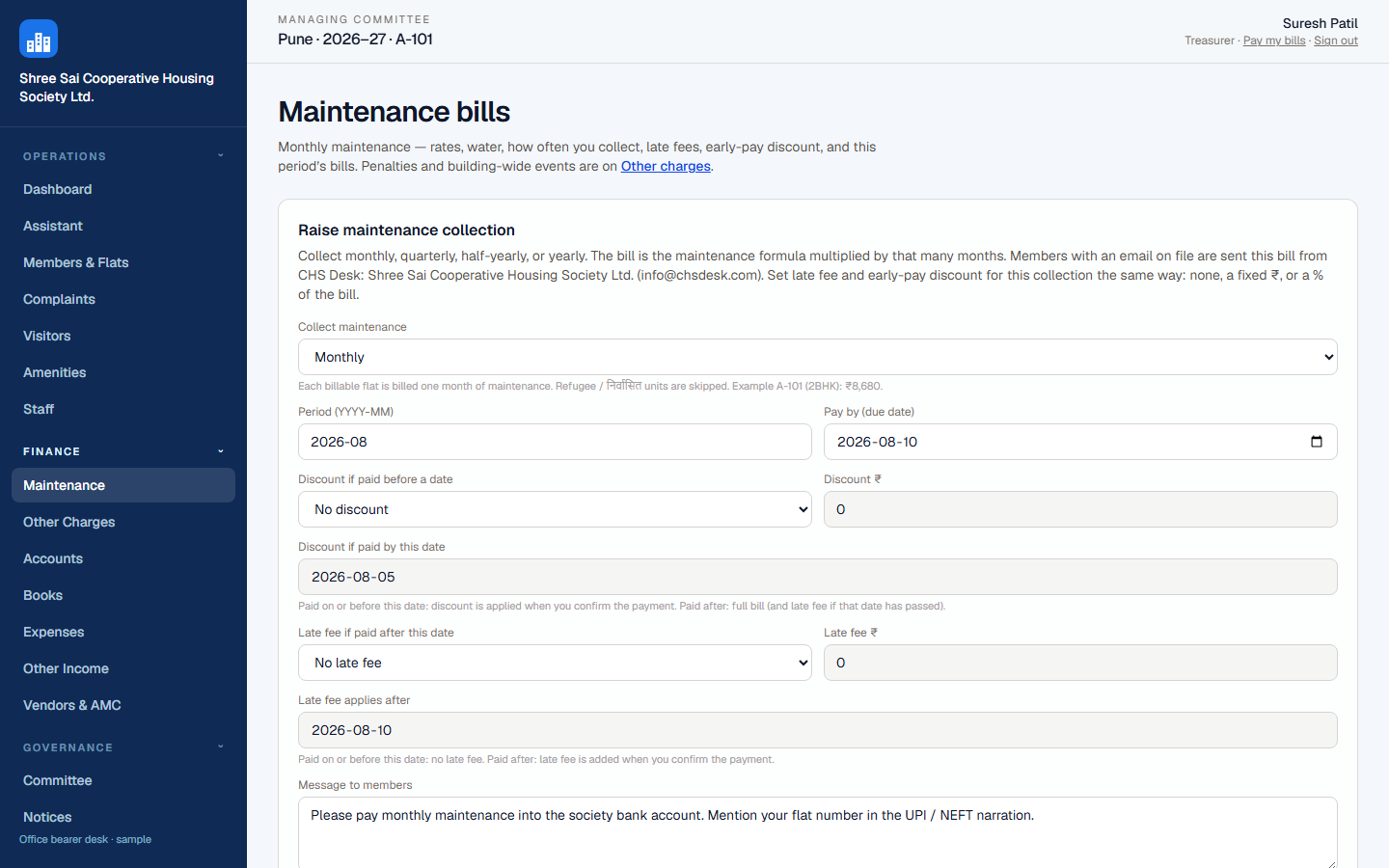
Maintenance — rates, due day, late fee, and this period’s bills.
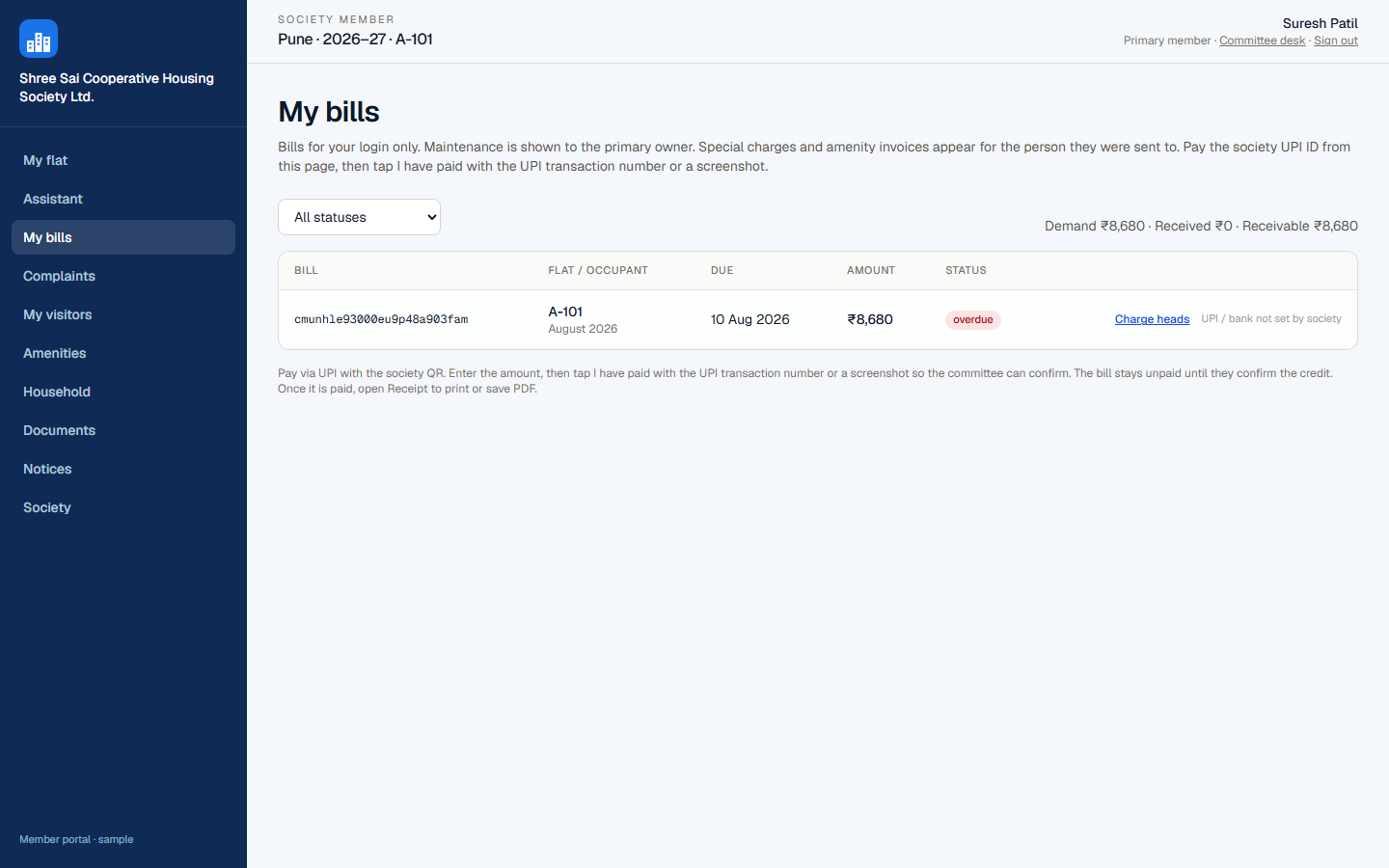
My bills — outstanding maintenance. UPI from the bill where enabled.
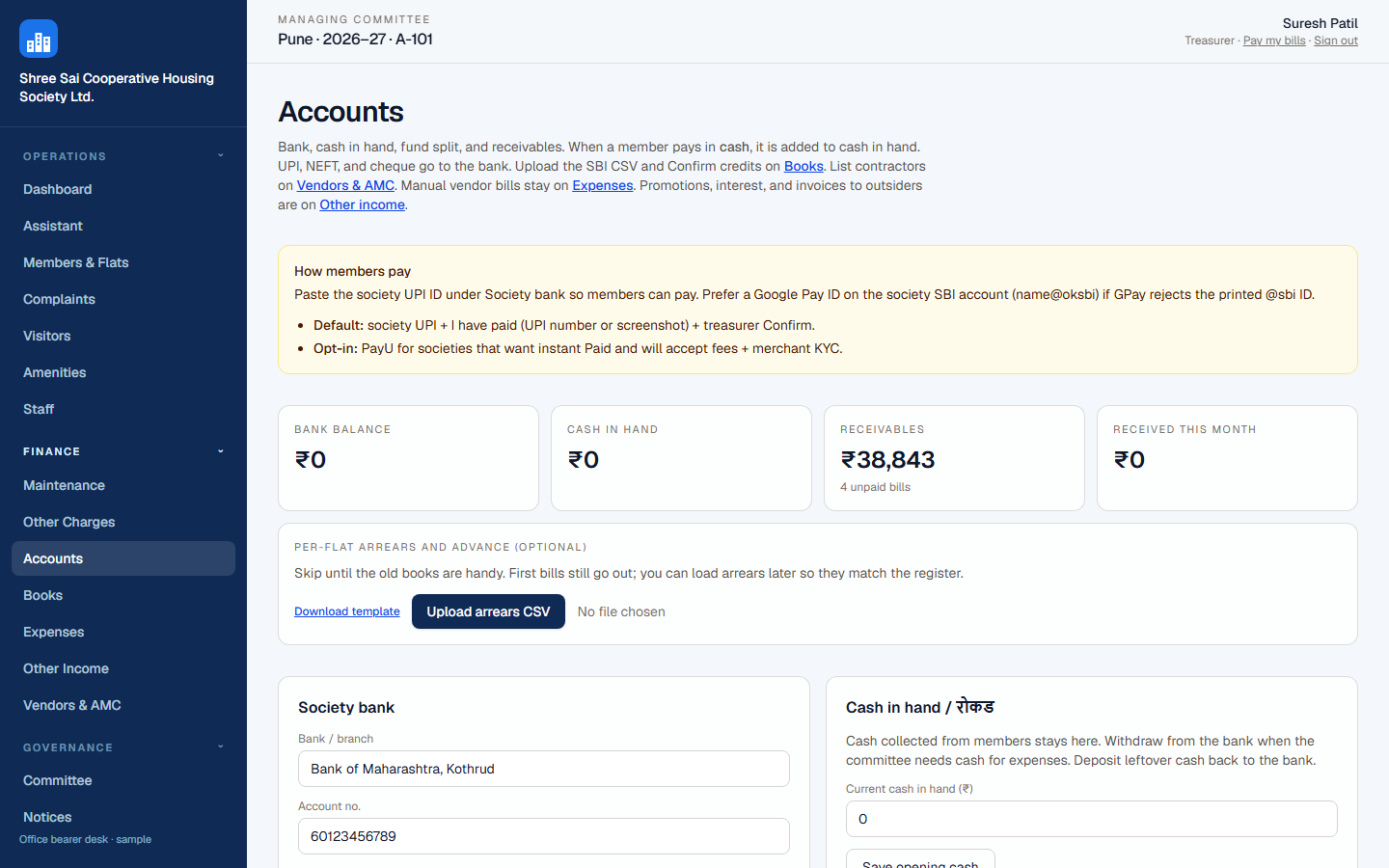
Accounts — cash to cash in hand; UPI/NEFT/cheque to the bank. Confirm UPI claims.
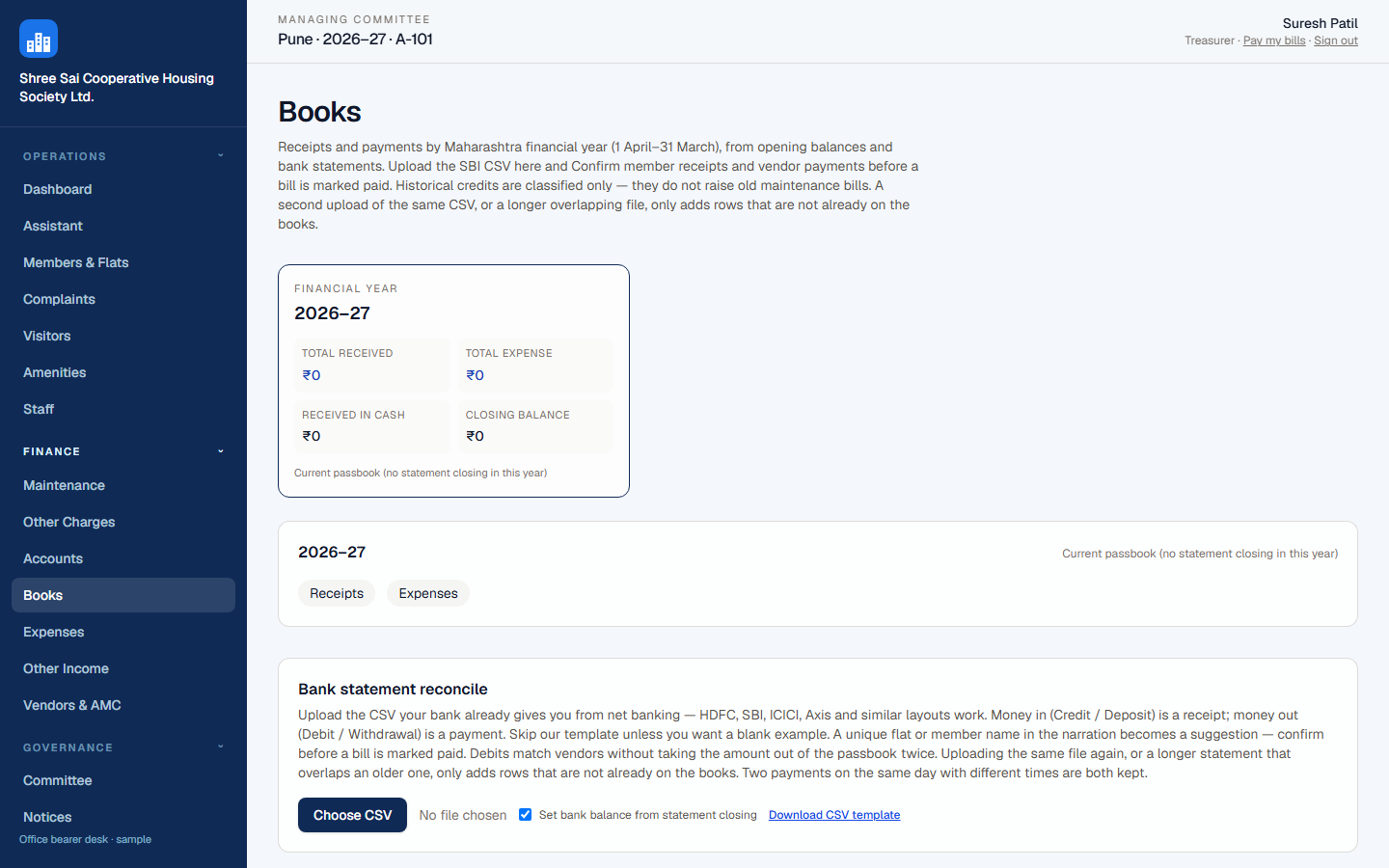
Books — upload the bank CSV and confirm member receipts before a bill is marked paid from the statement.
Resident UPI payment
Society UPI must be set. Resident opens Payments on the phone (or My bills), pays, then can tap that they have paid. The dashboard shows UPI sent until the treasurer matches the credit and confirms. Confirmation is what posts the receipt.
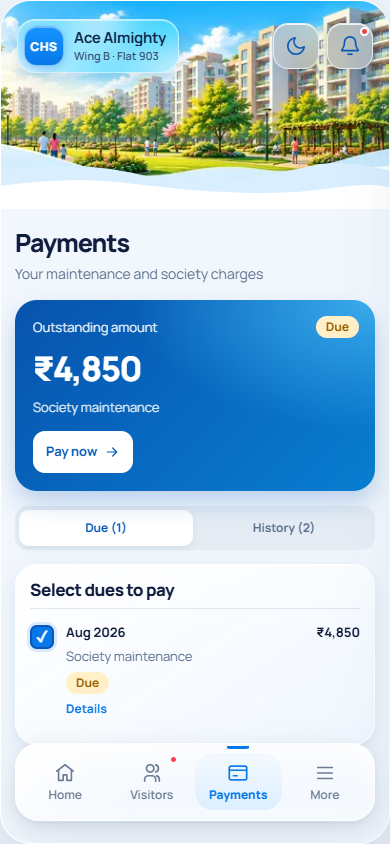
Phone Payments — open bill and UPI.
Resident My bills — same obligation, UPI button on the invoice.
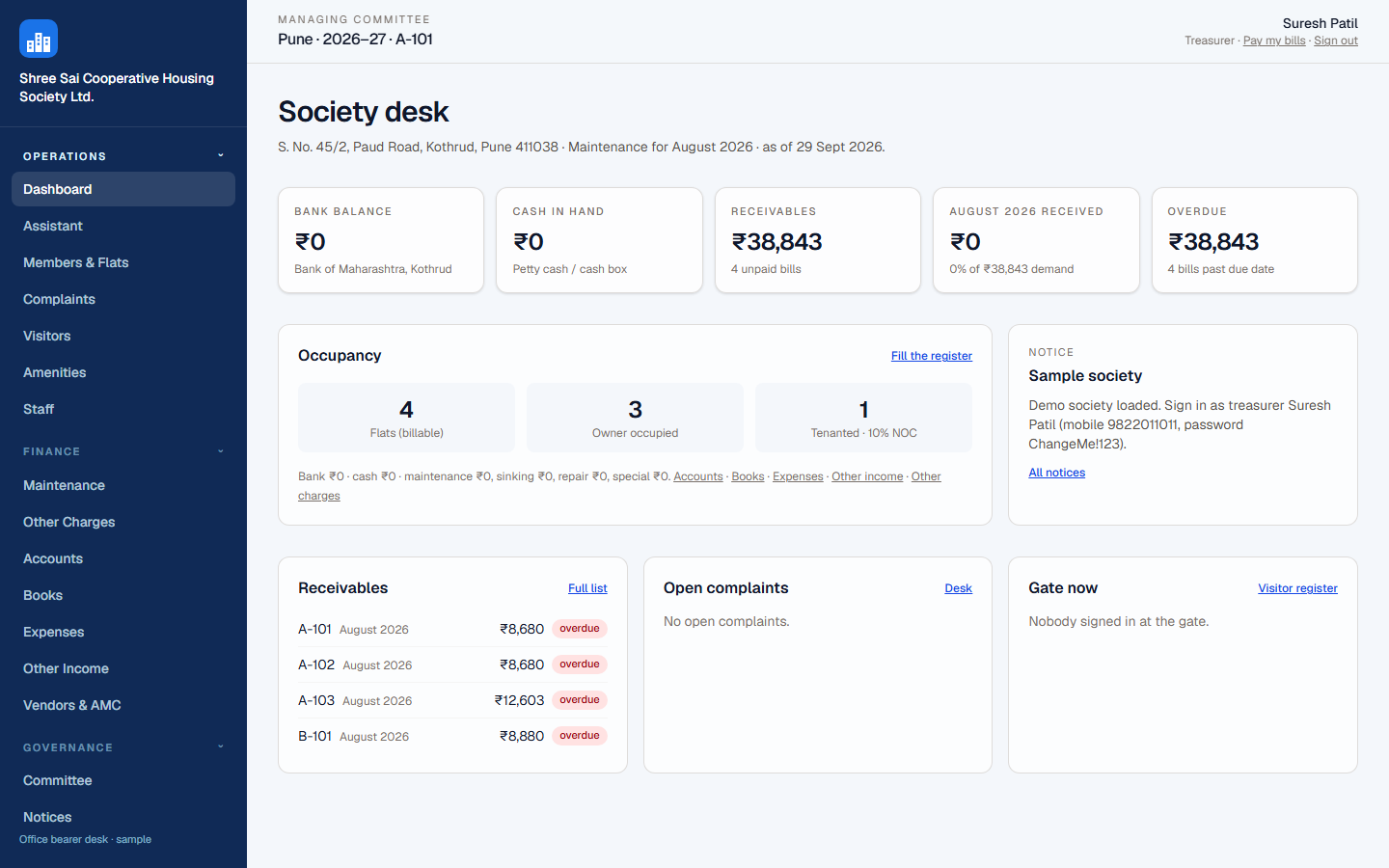
Dashboard / Accounts — confirm when the bank credit arrives.
Record UPI on Accounts or Maintenance. Books can confirm from the statement.
Visitor approval
If only Gate Register is on, the watchman logs who entered and left — no ringer. If Visitor management is on, the resident Android app rings until they tap Approve or Deny on the alert. When phone calling is turned on and they do not answer, their mobile is called. They press 1 to approve or 2 to deny. That call still works when the app is closed or the phone has no internet. Gate then marks in and out. Photos use the rear camera. Residents must have the app installed and notifications allowed for the on-screen ring — a browser tab in the background is not enough.
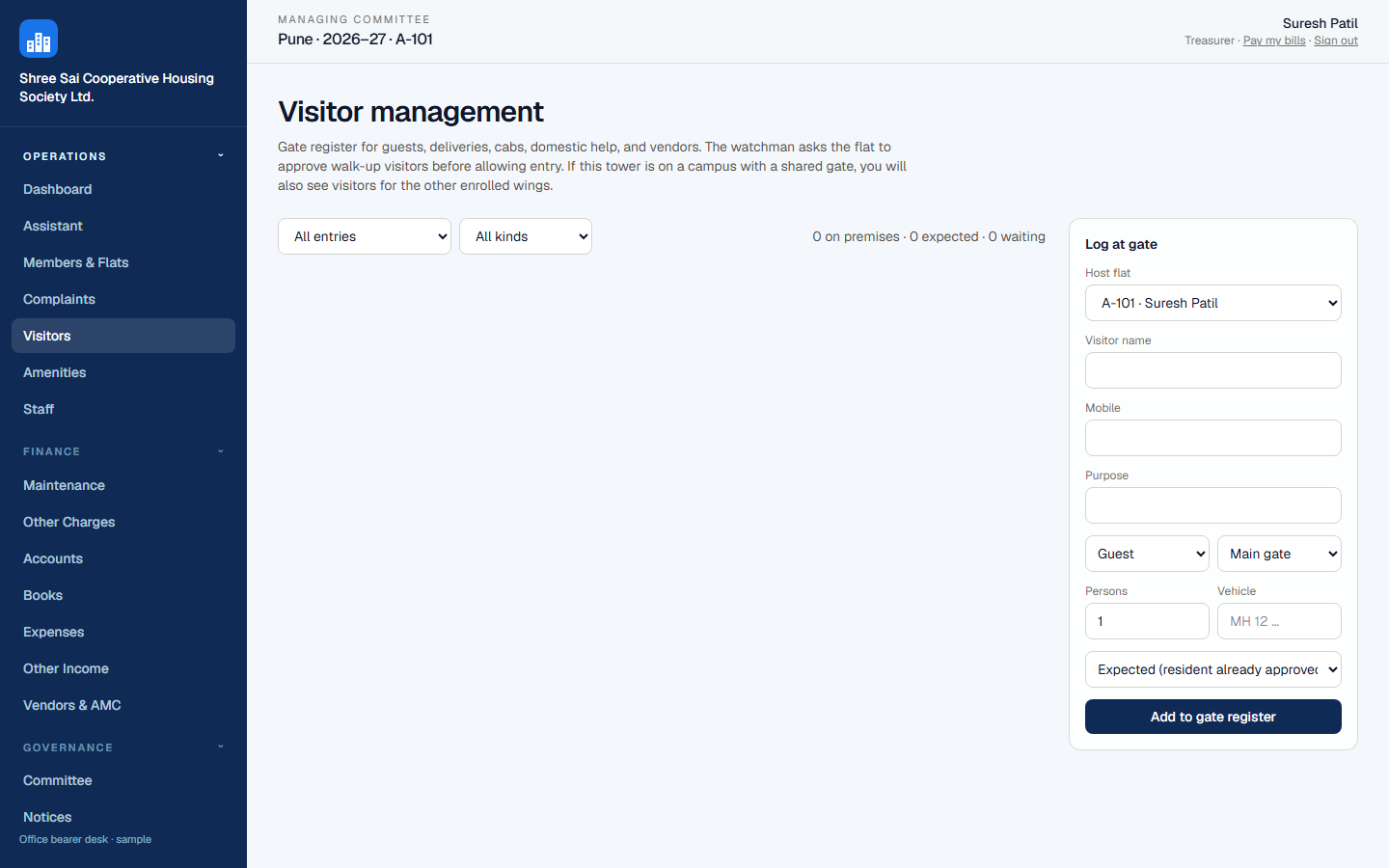
Visitors — expected, waiting for the flat, on premises.
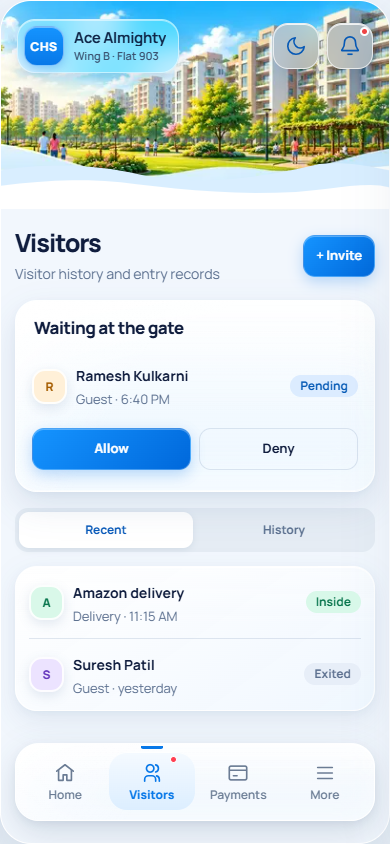
Phone Visitors — allow or deny the walk-up.
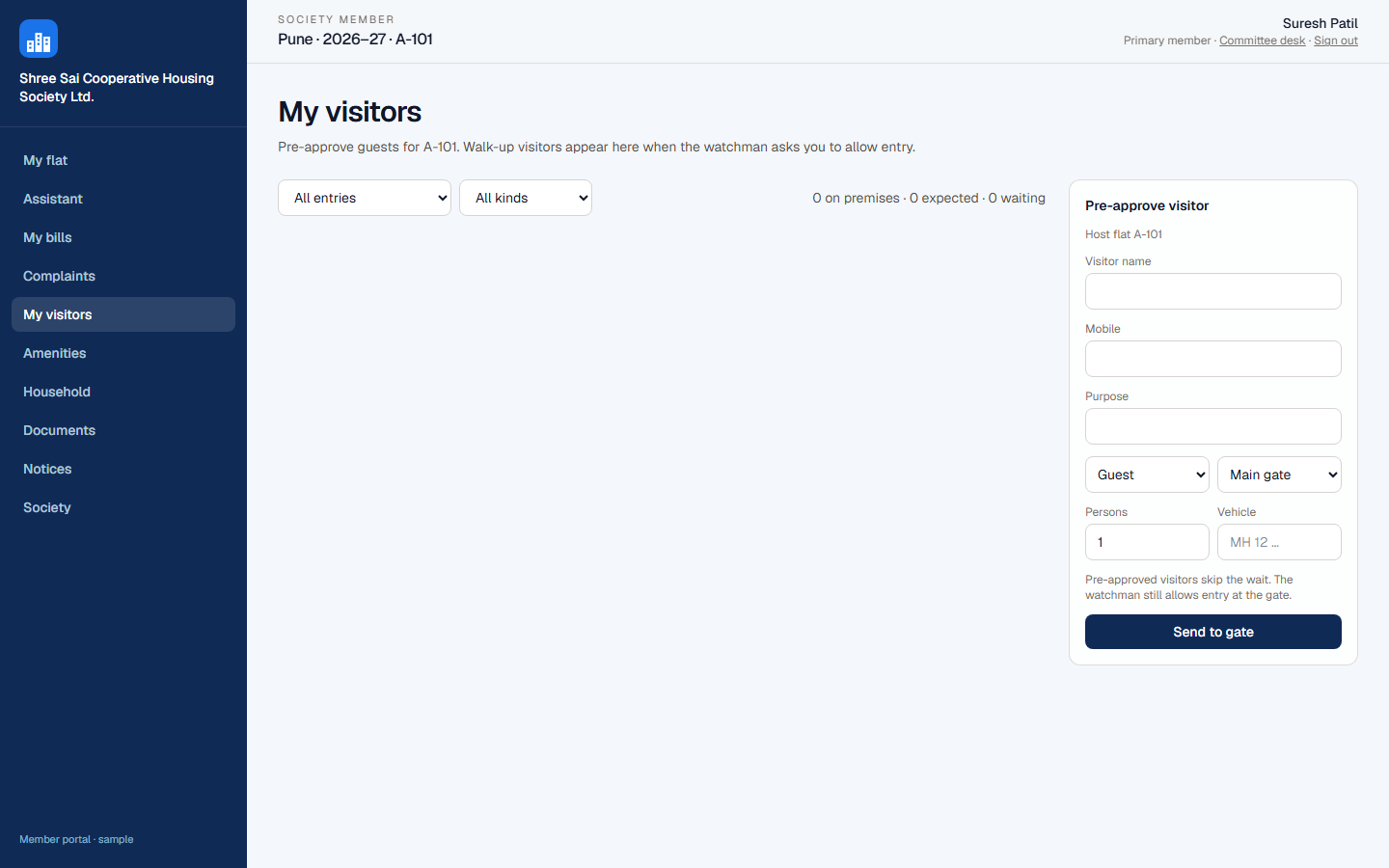
My visitors — approve gate requests for your flat.
Phone login — Security opens the gate desk, not the committee office.
Notices (desk, phone, WhatsApp)
Draft and publish on Notices. Members with the Android app get a quiet New notice alert (this is not the visitor ring). They also see the circular under Notices. Tick WhatsApp when publishing (or send again from the notice) once Cloud API is connected — see WhatsApp below. You can turn off email and WhatsApp and still send the in-app alert.
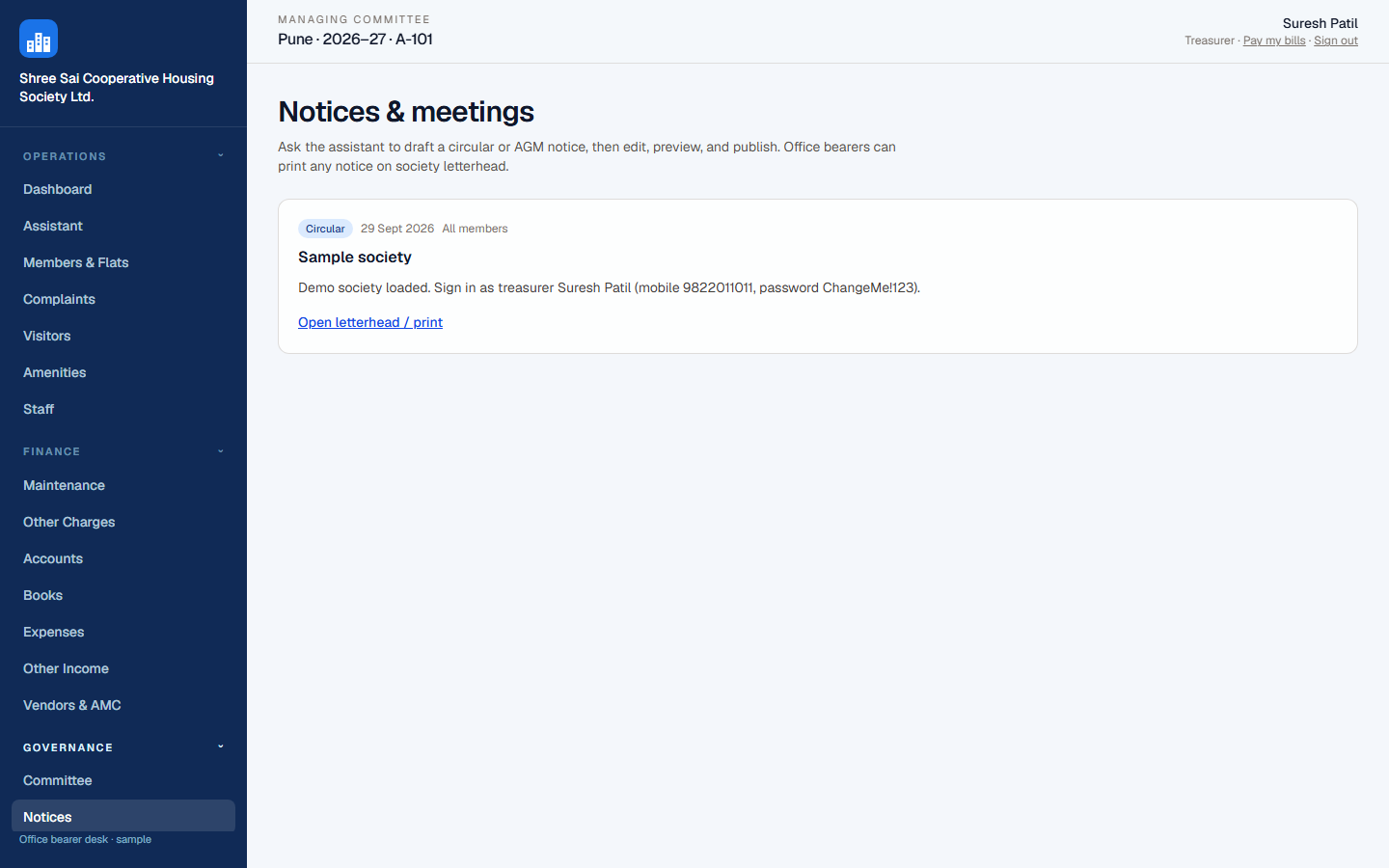
Notices — circulars, AGM, SGM; choose who can see them.
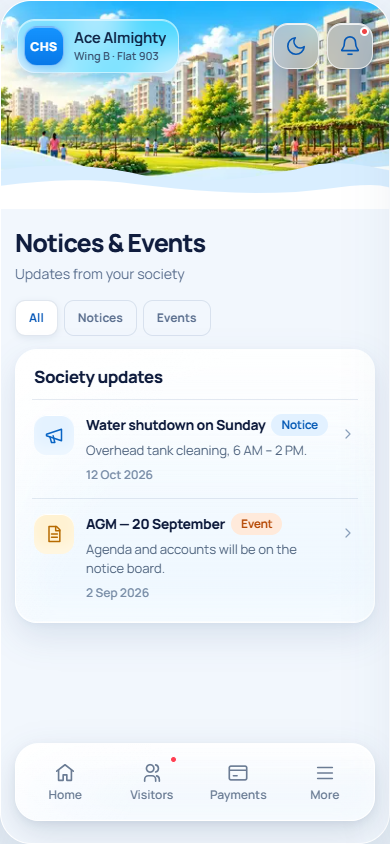
Phone Notices — circulars for the flat.
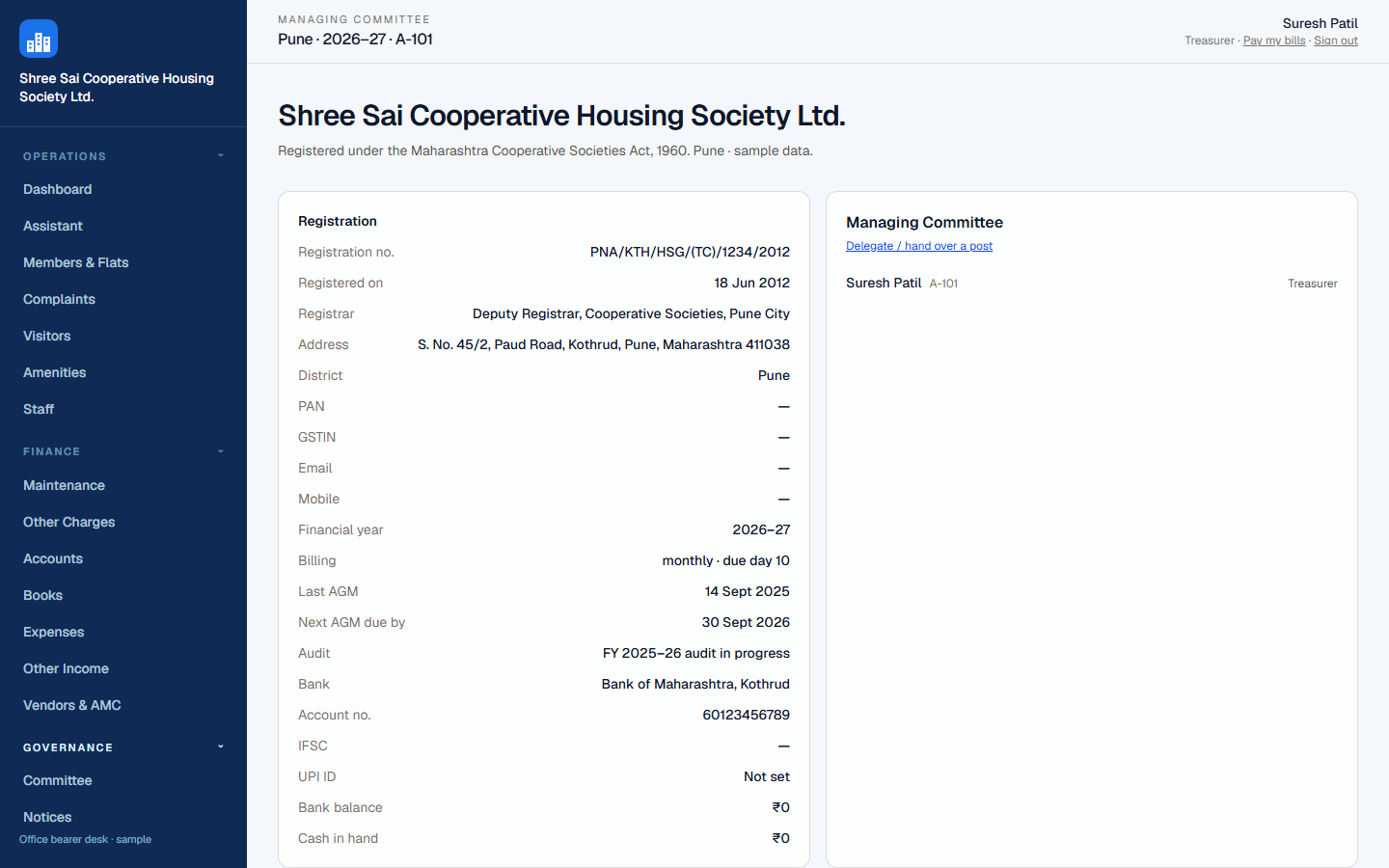
Society profile — WhatsApp Cloud API settings live with bank and modules.
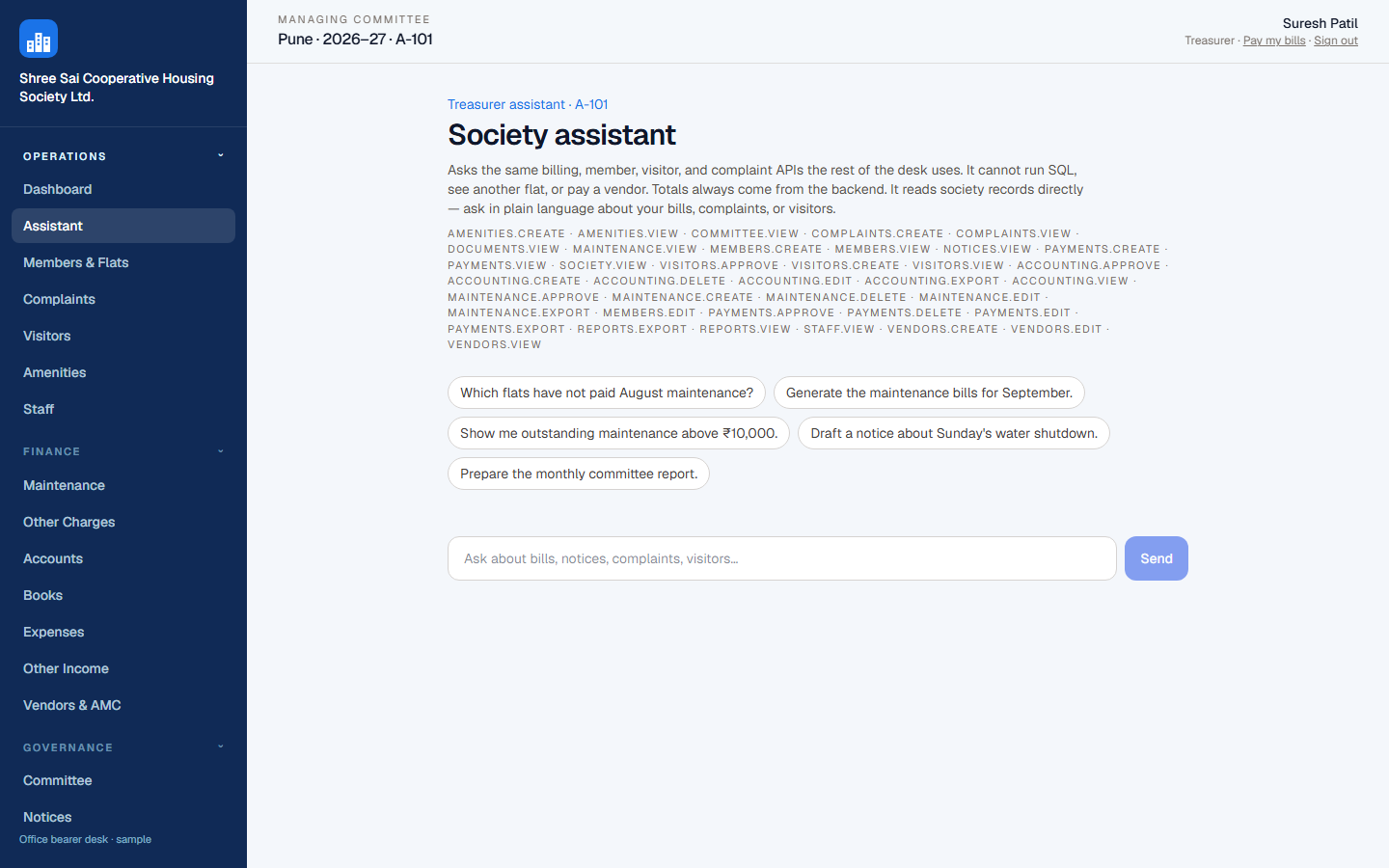
Assistant — draft a notice, then confirm before it is posted.
WhatsApp for society notices
CHS Desk sends published notices to members who have a mobile on the register, using Meta WhatsApp Cloud API. It does not replace the gate, bills, or the member WhatsApp group. CHS Desk cannot register a WhatsApp Business Account (WABA) for you — that stays in Meta Business Manager.
What members receive
A utility template (default name society_notice) with three body variables, in this order:
- Society name
- Subject (notice title)
- First part of the circular (plain text, no line breaks)
Language code defaults to en. Change it on Society if your approved template uses another code (for example en_US or hi).
Platform number vs the society's own WABA
- CHS Desk platform number — if the society has no Phone number ID and token of its own, sends use the platform Cloud API credentials. Leave Society WhatsApp fields empty unless you are switching to your own WABA.
- Society's own WABA — paste Phone number ID and a permanent access token on Society → WhatsApp Cloud API. Leave the token blank on later saves to keep the current one.
Connect and approve the template
- In Meta Business Manager, open WhatsApp → API Setup. Copy the Phone number ID.
- Create a permanent system-user token with WhatsApp permission. Store it only on Society; do not put it in a shared chat.
- Create a utility template named society_notice (or the name you save on Society) with the three body variables above. Submit for approval.
- Confirm the template is approved. List templates with GET https://graph.facebook.com/v21.0/<WABA_ID>/message_templates and a Bearer token. Use the WhatsApp Business Account ID here, not the Phone number ID (the Phone number ID is used to send messages).
- On CHS Desk, open Society, fill Phone number ID, token, template name, and language, then Save WhatsApp.
- Publish a notice and tick WhatsApp now to members with a mobile on file, or open the notice and choose WhatsApp members. Failed sends do not un-publish the notice; members still see it in the app.
If send fails, typical causes are an unapproved template, a name/language mismatch, a token that expired, or a mobile missing on the member. Audit packs can also be circulated on WhatsApp from Audit after the same connection is in place.
Guides by role
Sign in with your own mobile. The menu only shows what your post is allowed to do.
Secretary
Website → Office / committee desk
- Own the register: Members & flats, CSV import, tenant applications, family approvals.
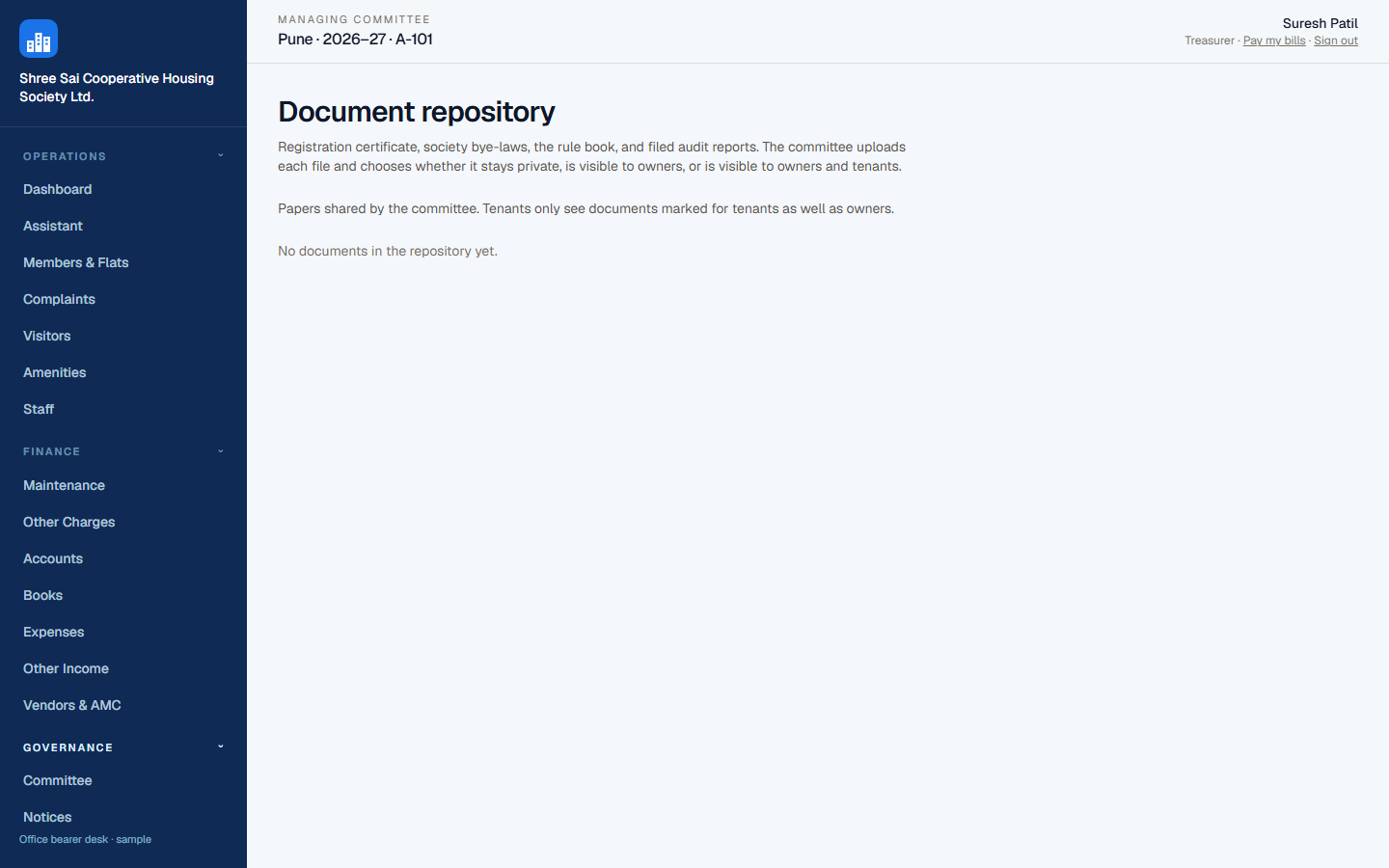
- Notices, documents, committee seats and handover, society profile and modules.
- Connect WhatsApp on Society; publish circulars — members also get an in-app notice alert.
- Open Job alerts and assign work to Security or Housekeeping (the desk, not a named guard). Daily jobs ring the shared gate phone.
- Complaints: reply and close with the property manager if you appointed one.
Treasurer
Website → Office / committee desk
- Maintenance rates, raise collection, other charges, special levies.
- Accounts: bank, cash in hand, confirm UPI claims, record cash/NEFT/cheque.
- Books: FY ledger, upload bank CSV, confirm receipts and vendor payments.
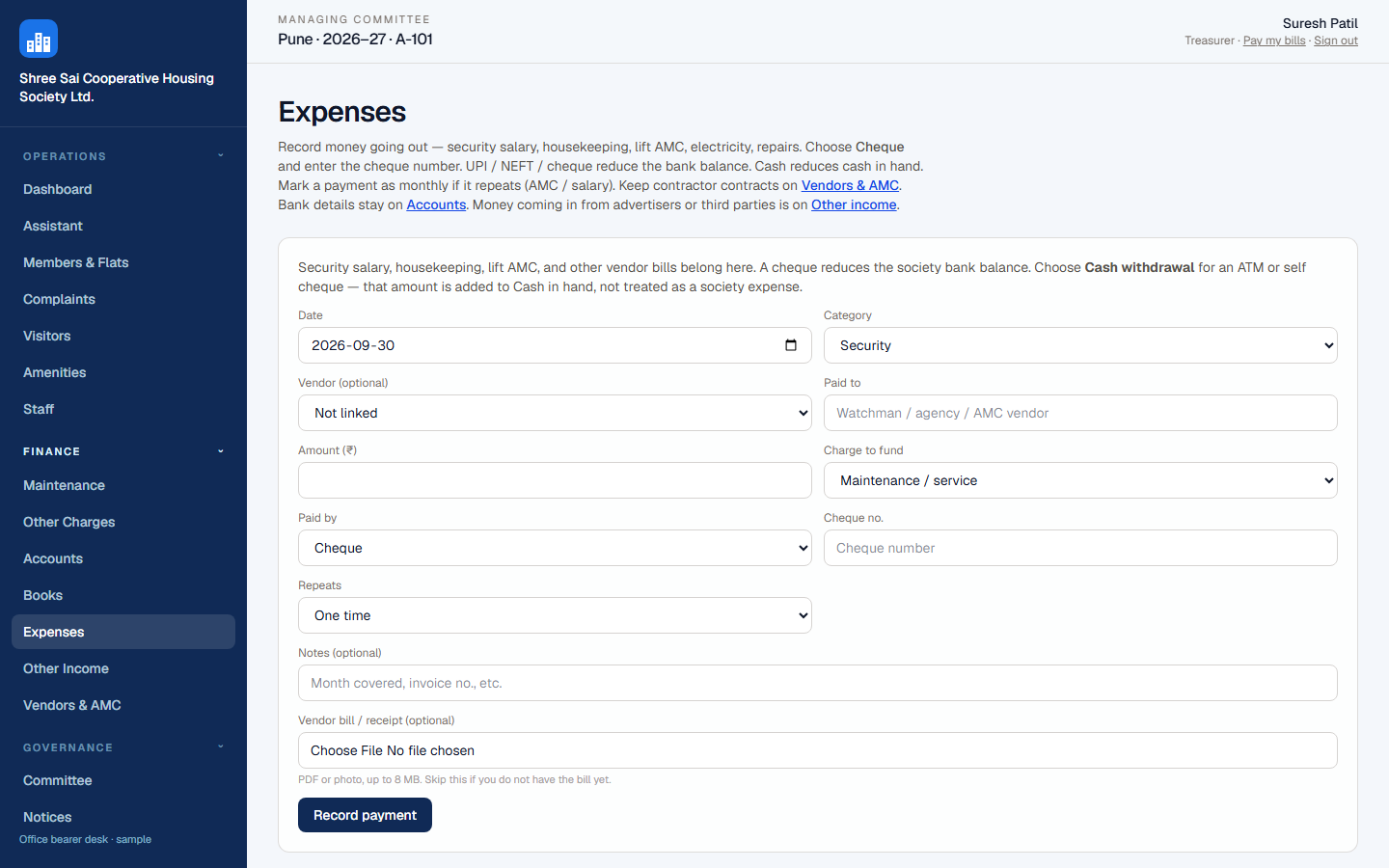
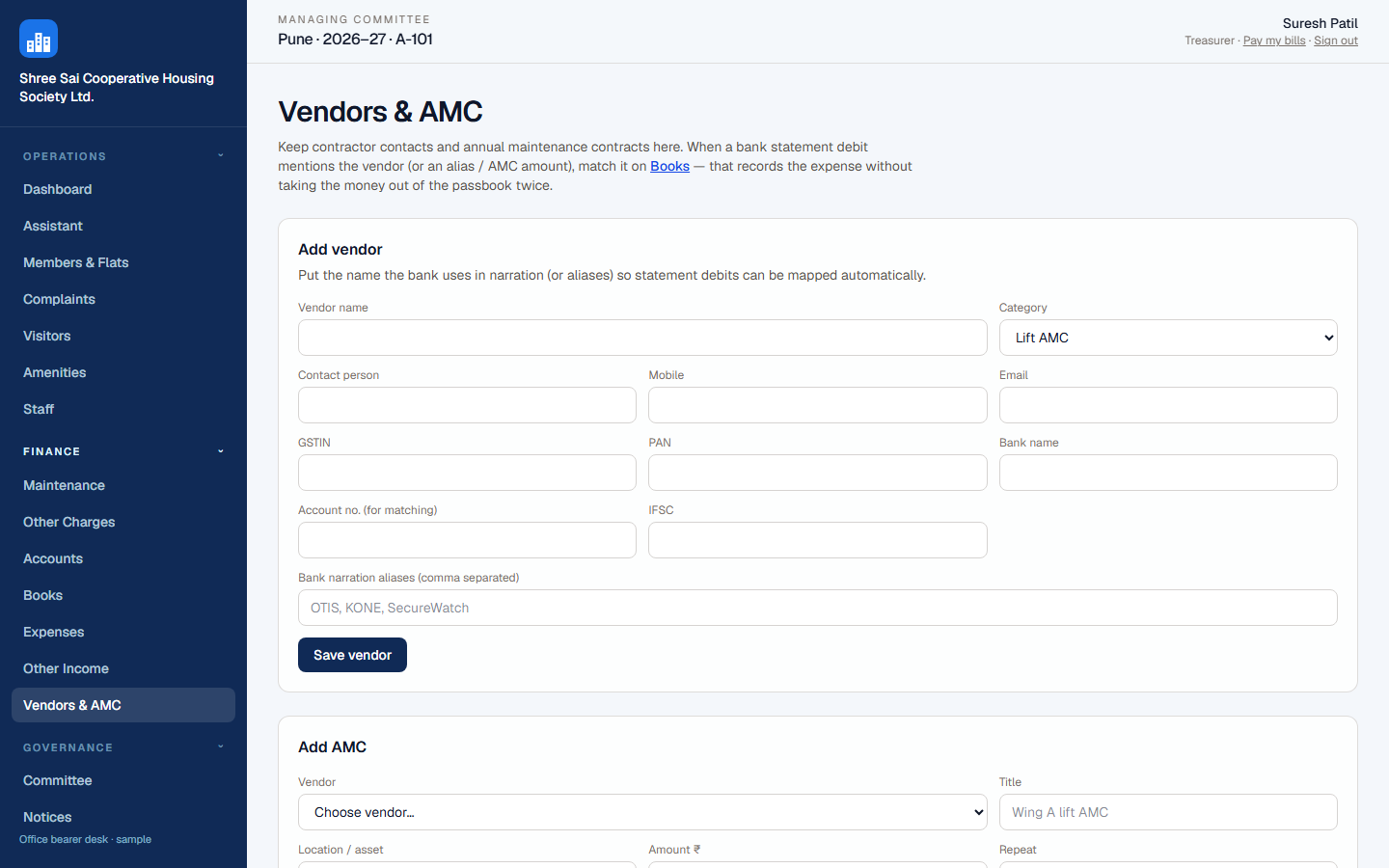
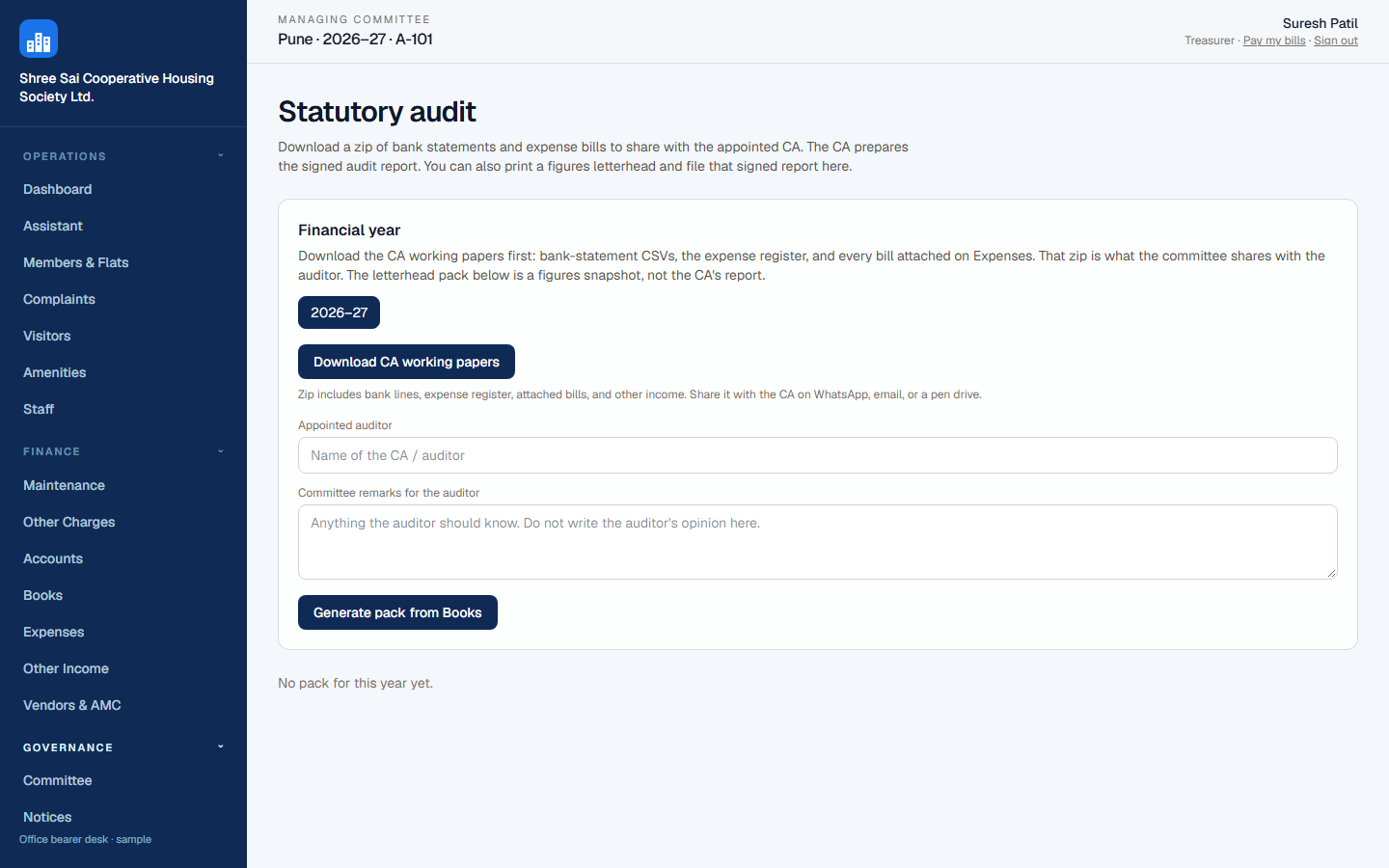
- Expenses, other income, vendors & AMC, audit pack for the CA.
Chairman
Website → Office / committee desk
- Dashboard for dues, complaints, and who is at the gate.
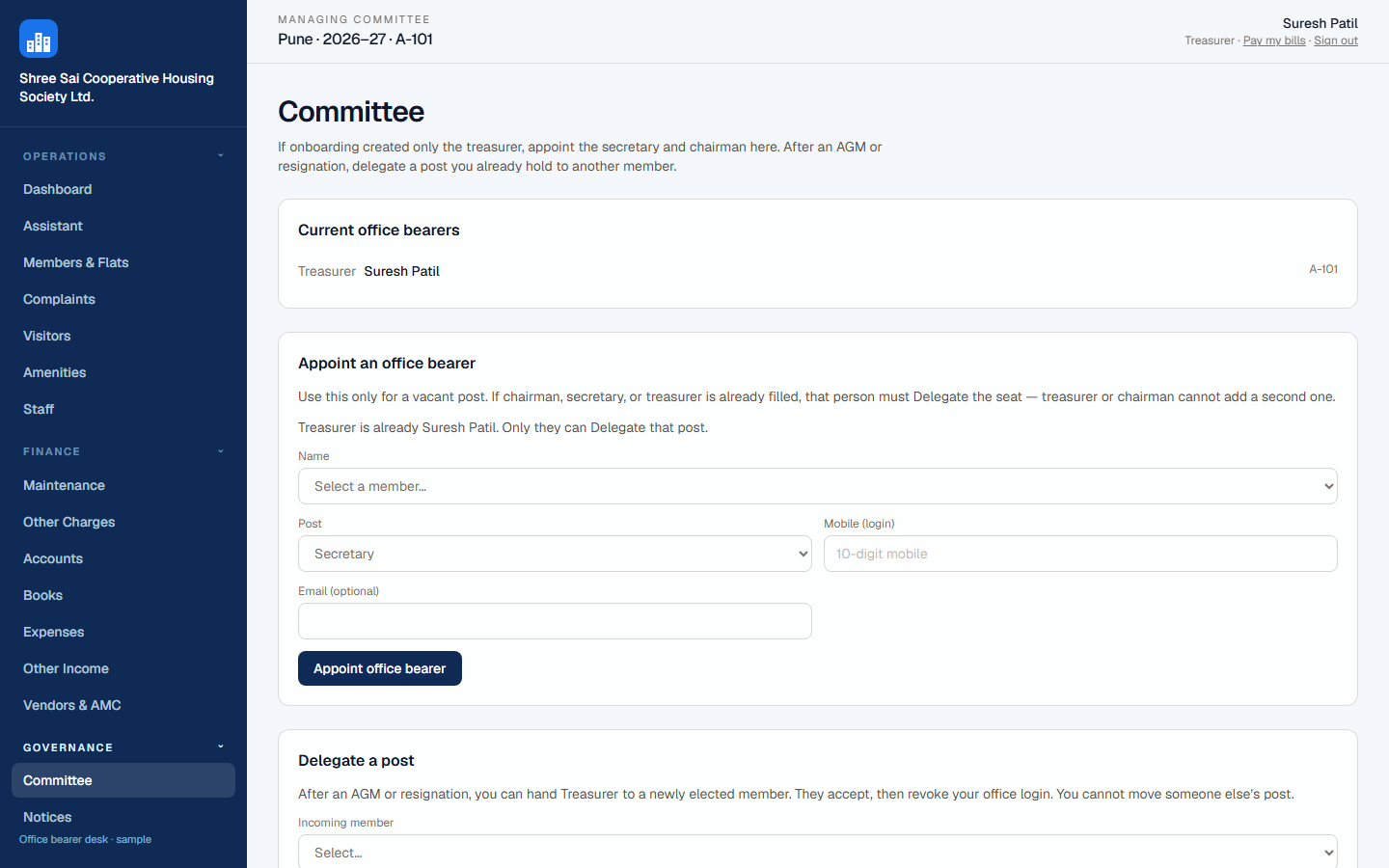
- Committee: seats, handover after AGM or resignation.
- Notices and documents; Assistant for a draft, then confirm.
- Staff appointments (security, property manager) without sharing the treasurer login.
Committee member
Website → Office / committee desk
- Same office as office bearers; buttons follow the permissions on your seat.
- Typically complaints, notices, visitors — not the bank unless granted.
- If you also live in the society, Pay my bills opens your resident desk.
Resident
Website → Resident portal, or phone app as Resident
- My flat, My bills (UPI), complaints, visitors, amenities, household, notices, documents, Community, Community Polls, rent parking, marketplace, parcels, household staff, shopping deals, and announcements.
- Install the Android app and allow notifications. Approve or deny walk-ups from the ringing alert; add expected guests in Visitors.
- Tenants handle visitors on a rented flat; maintenance bills stay with the owner unless charged otherwise.
Security
Phone app as Security, or website → Gate
- Keep one smartphone at the gate cabin, logged in as Security. Morning and night 12-hour guards share that handset — do not pick a named person when the office assigns a daily job.
- Add visitor: flat, name, mobile, kind, vehicle, persons. Rear camera for photos.
- Wait for the flat on walk-ups; then allow entry or send away. Mark exit on Gate Log.
- When a job rings, tap Done after the work, or Snooze to hear it again in 10 minutes. Open Jobs on the gate app to see today’s list.
- Never use the committee office login.
Housekeeping
Phone app as Housekeeping, or website → Housekeeping
- See today’s jobs assigned to Housekeeping. Tap Done or Snooze (10 minutes).
- Notices that the office published for staff.
- No bank, no member register, no gate visitor desk.
Property manager
Website → Staff / property manager (phone app is not this desk yet)
- Complaints and notices for day-to-day operations.
- No bank, no member register, no treasury.
- Appointed by the committee on Staff, with a temporary password until they change it.
Committee office
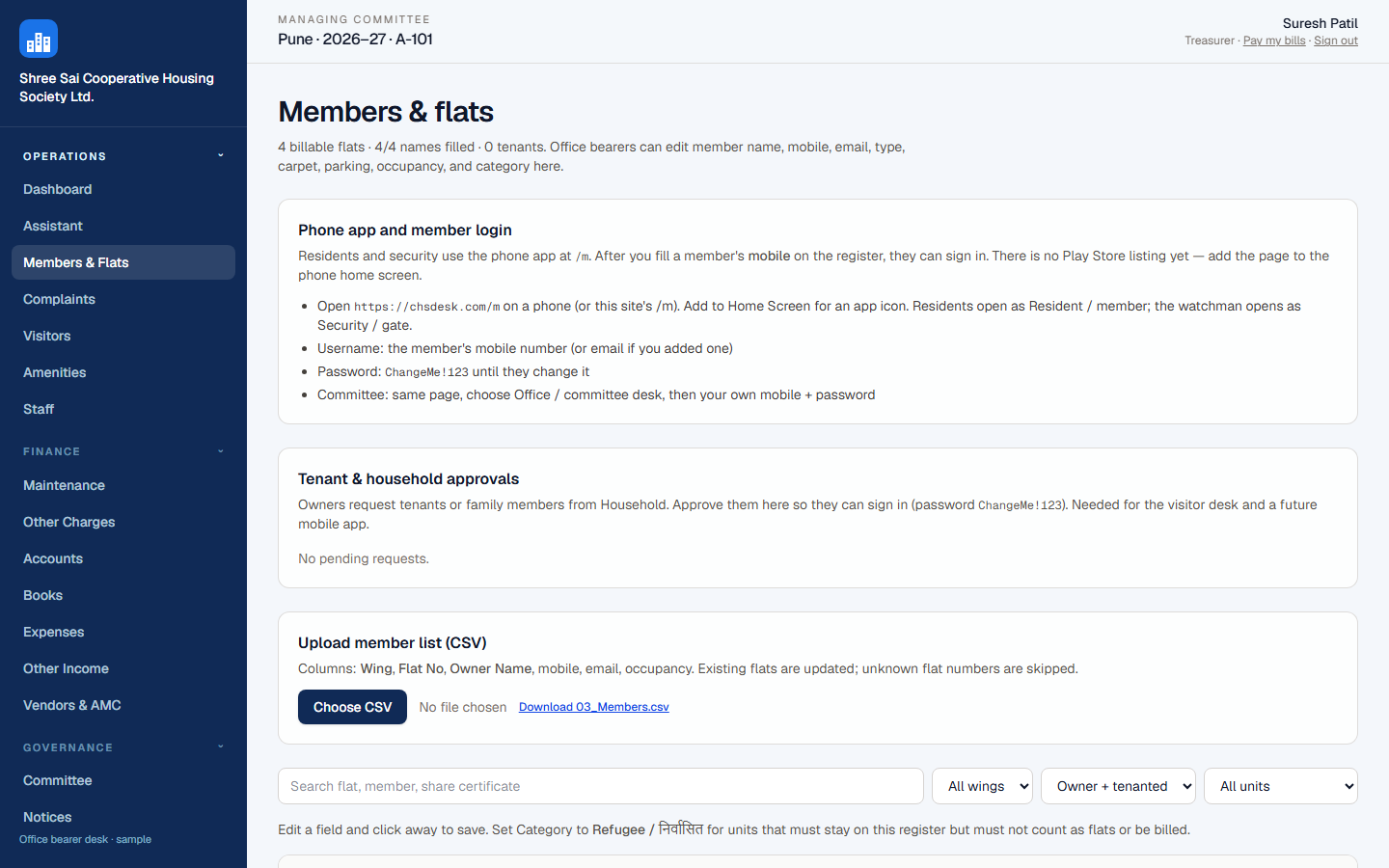
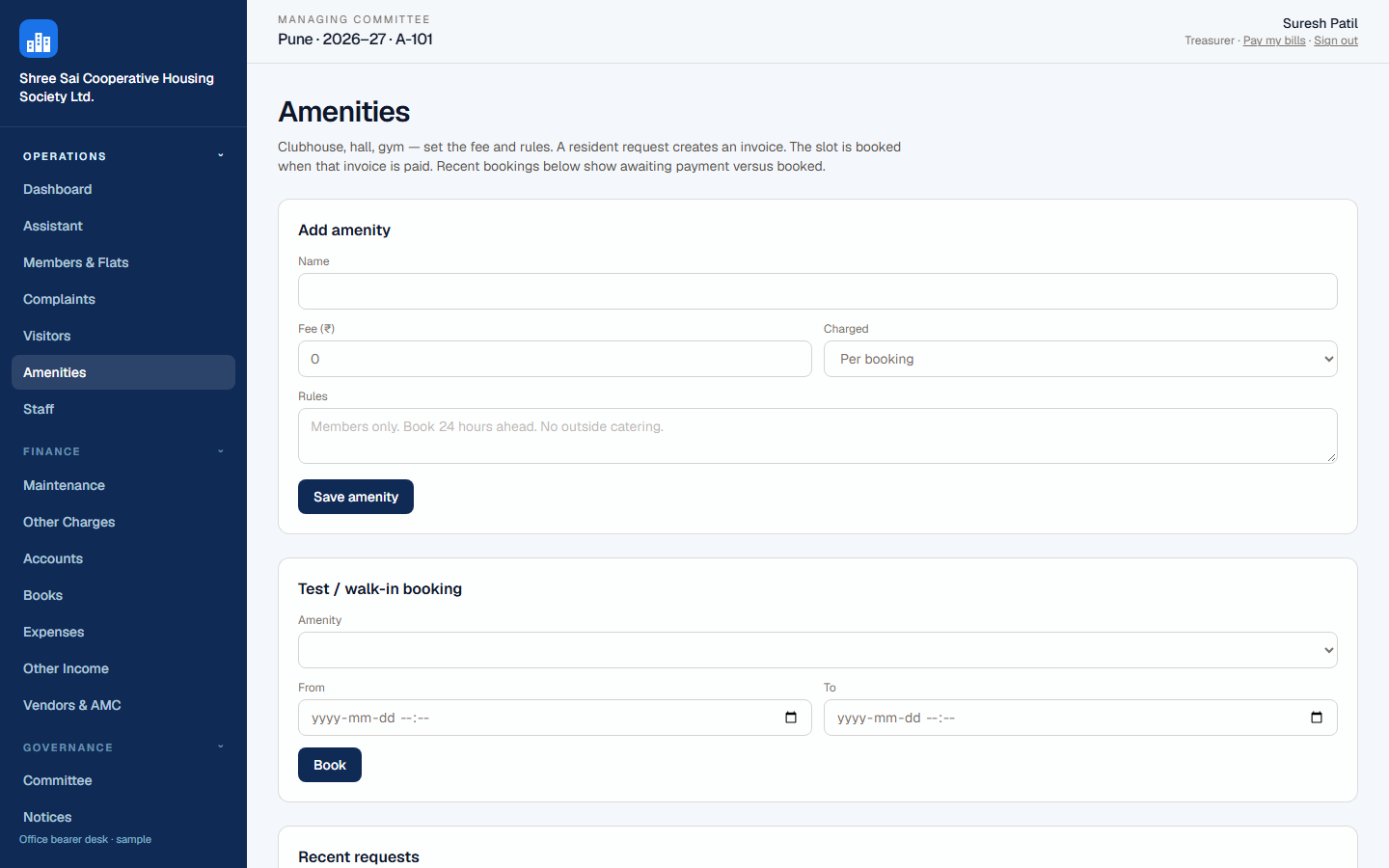
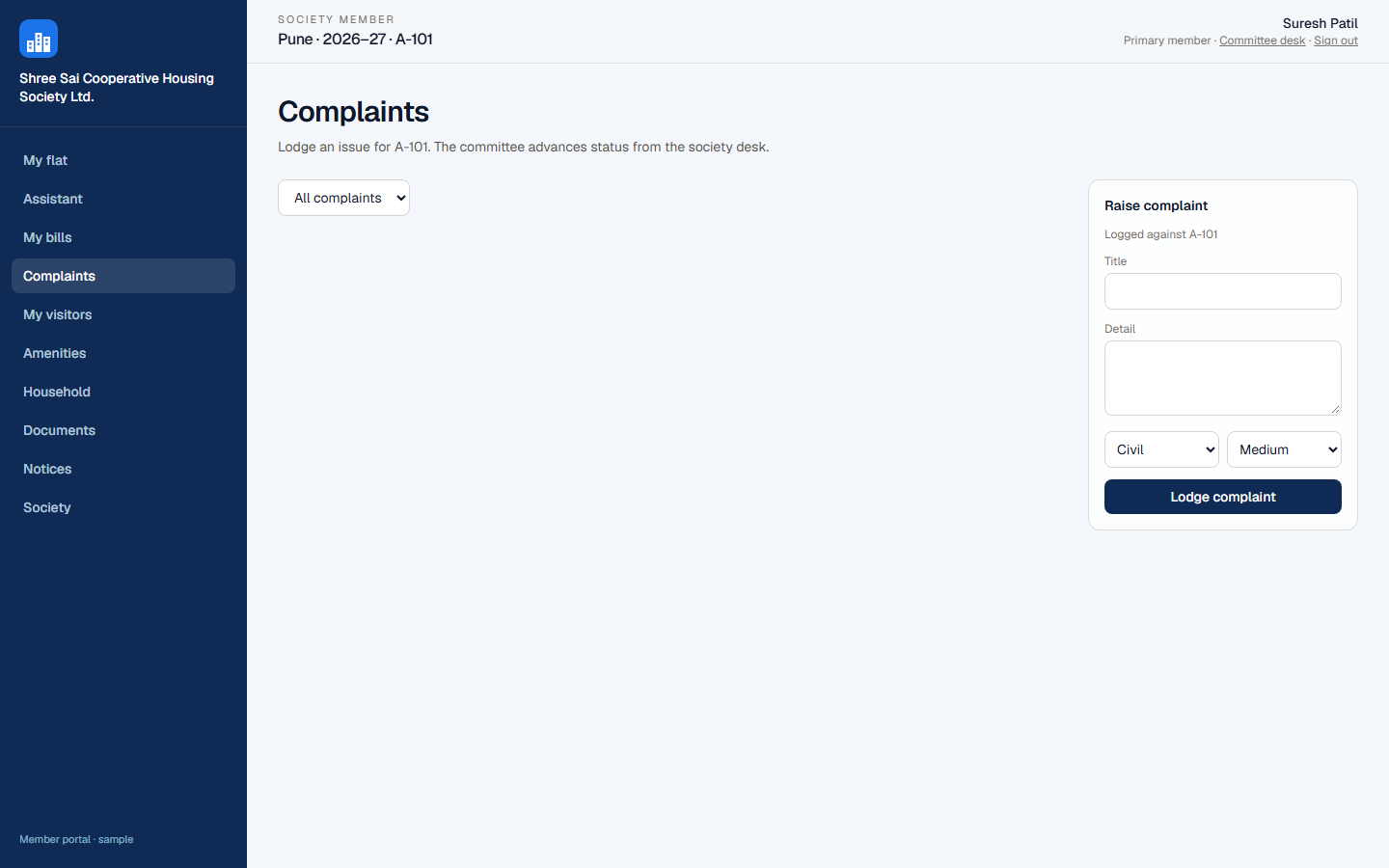
After office sign-in you land on the Dashboard. The navy sidebar is Operations, Finance, and Governance. Community Polls are for everyday opinions. AGM / SGM Voting is the separate place for formal society decisions. Committee work is on the website. The Android app is for residents, security, and housekeeping.
Bills and accounts
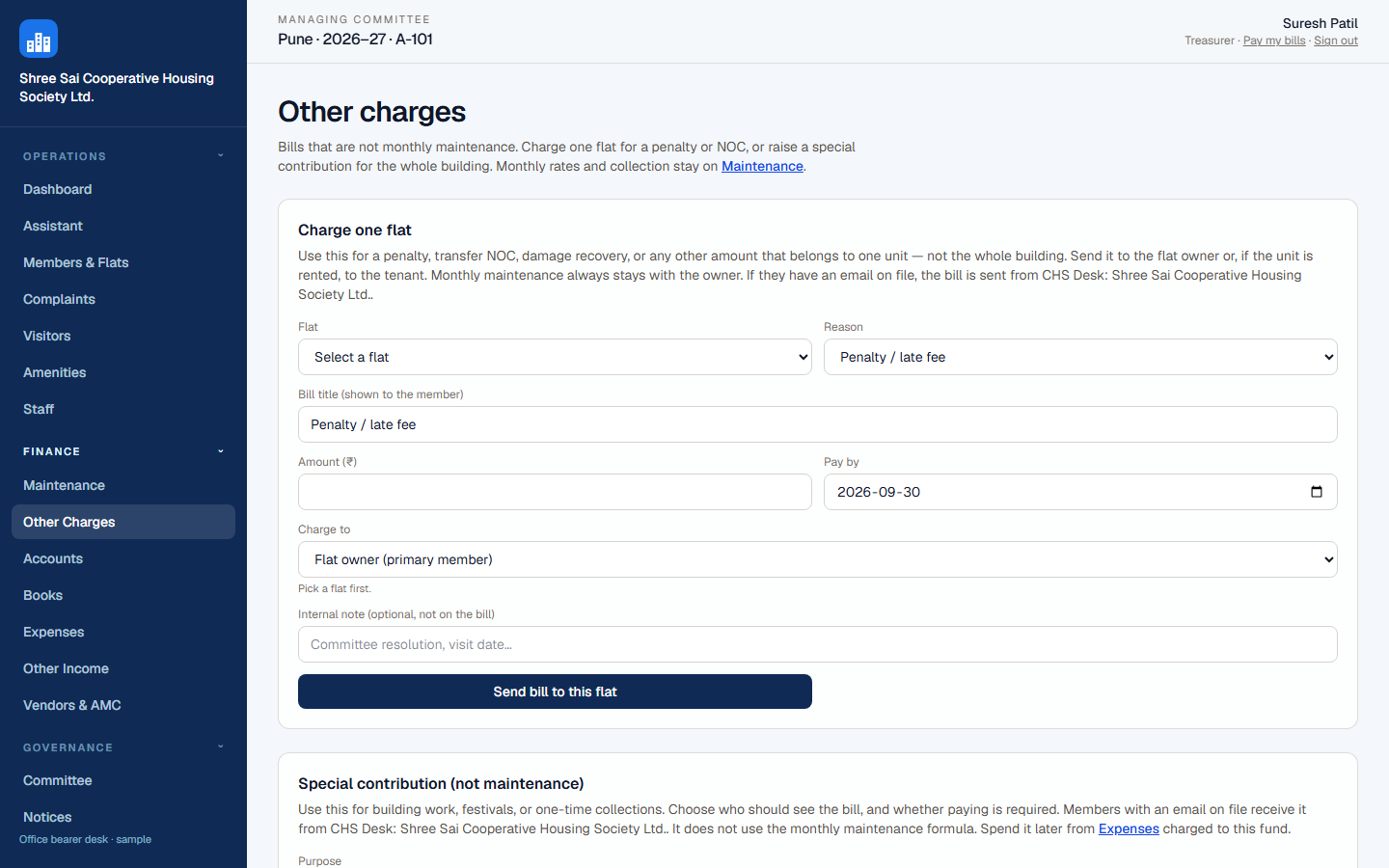
Monthly maintenance stays on Maintenance. Penalties, NOC, and building-wide levies are Other charges. Cash receipts go to cash in hand; UPI, NEFT, and cheque go to the bank.
Members, visitors, complaints
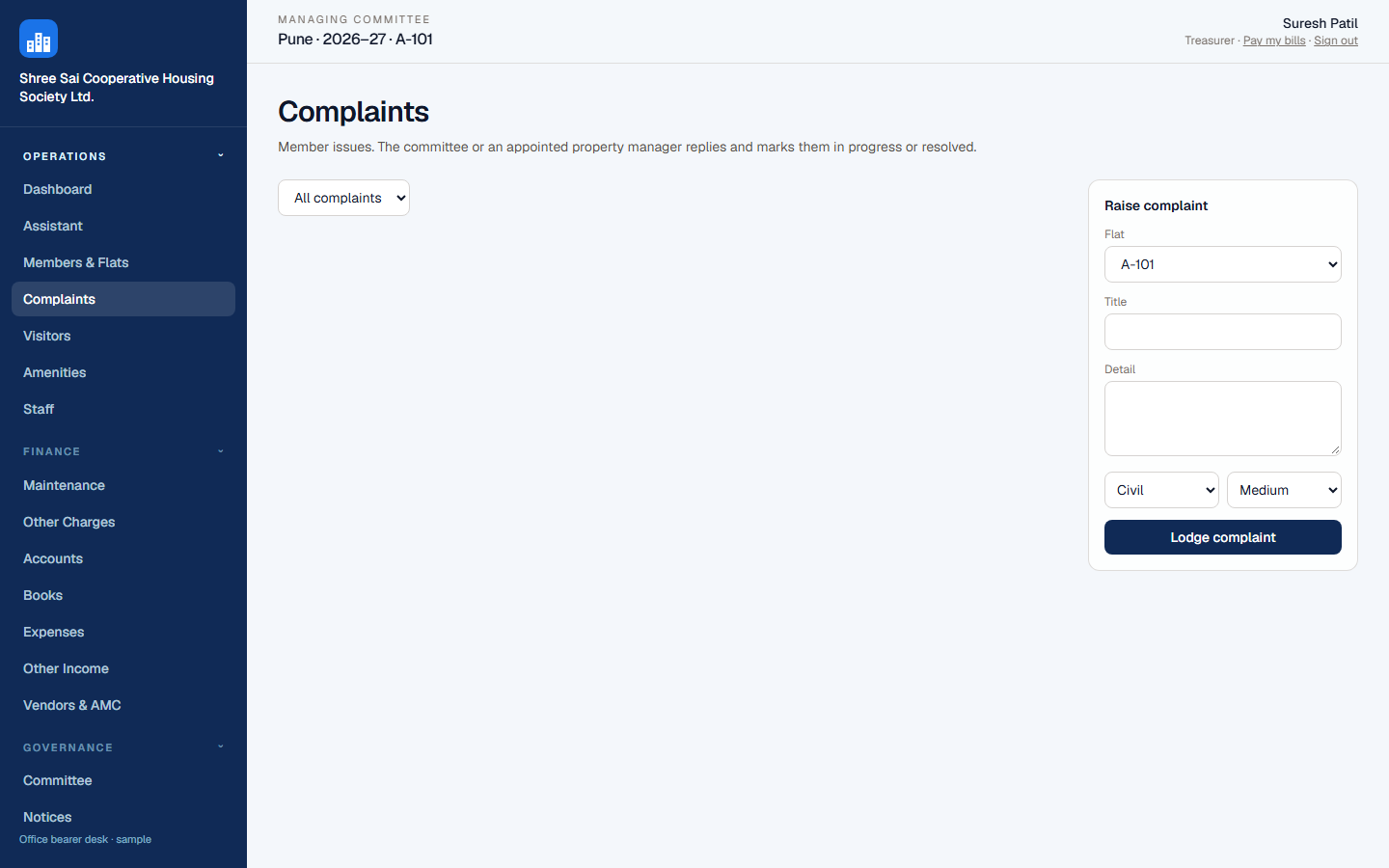
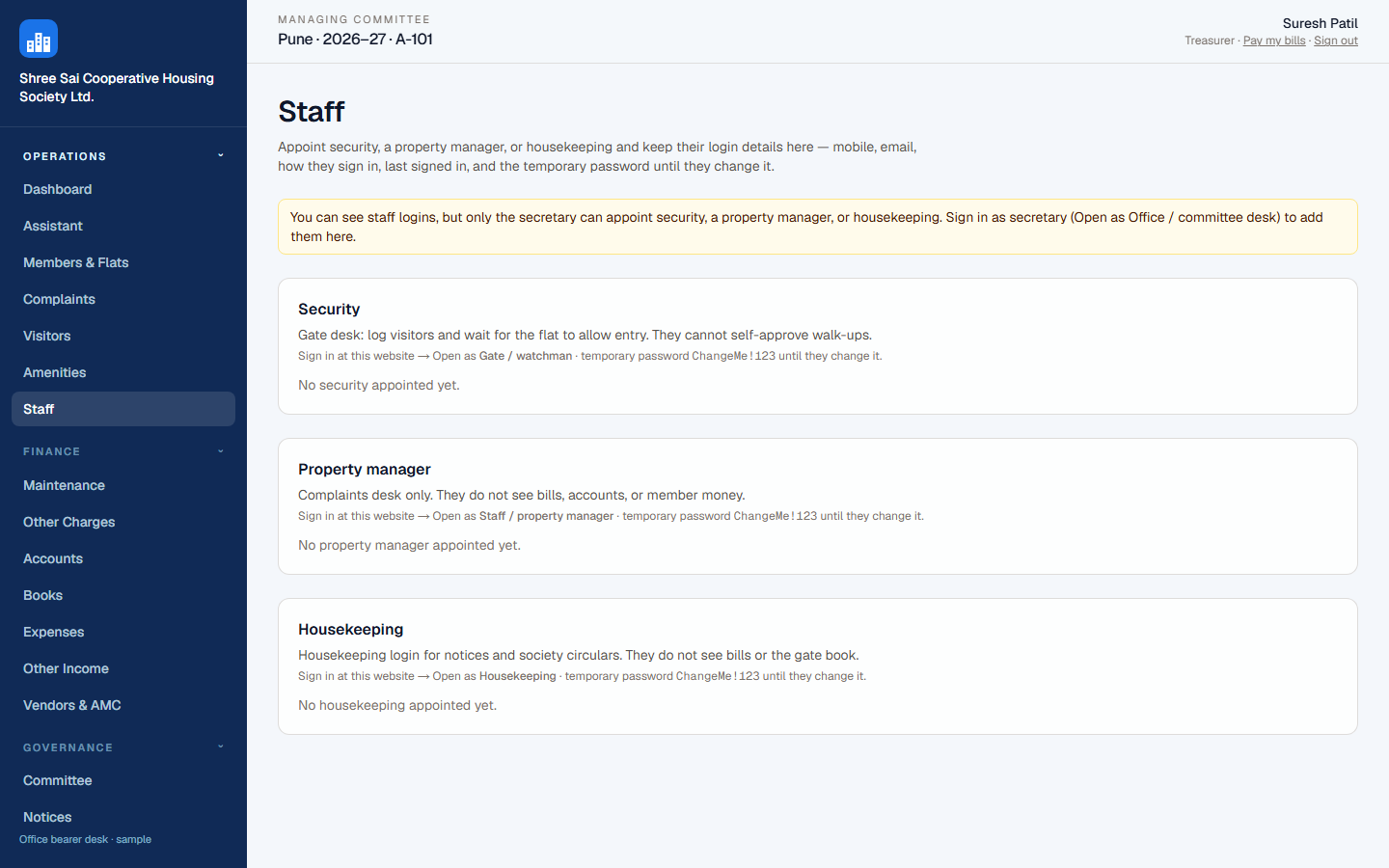
Import or type the register. Mark refugee / निर्वासित flats if they are not billed. Approve occupant requests from Household. Visitors wait for the flat — the resident app rings until they Approve or Deny. If they do not answer, phone calling can ring their mobile: press 1 to approve or 2 to deny. Complaints keep a trail. Daily jobs for the gate live on Staff.
Notices, documents, audit
Resident portal
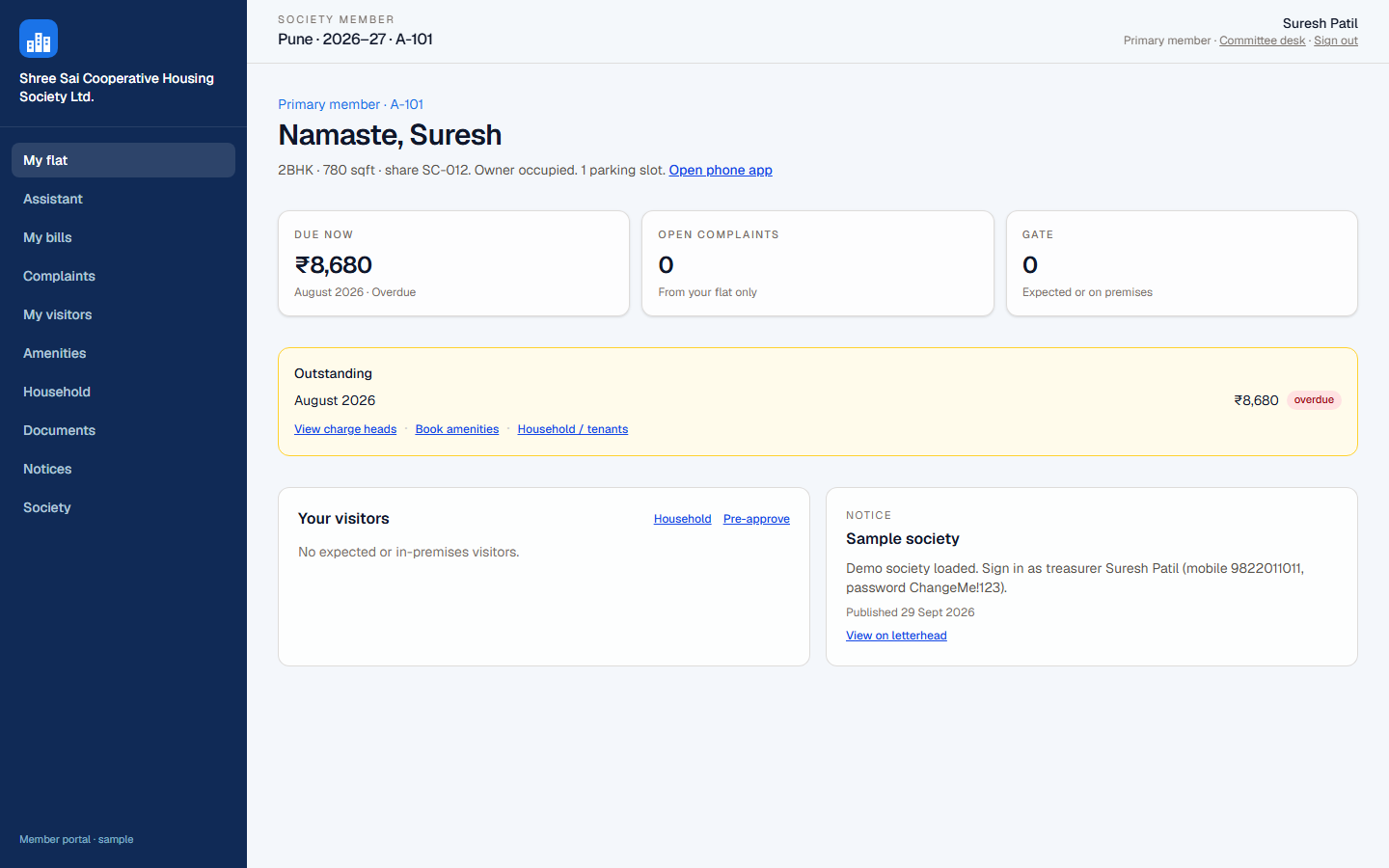
Sign in as Resident portal, or Pay my bills from the committee header if your flat is linked. You only see your flat. The sidebar matches the phone: Community (when your society has it on), Community Polls, Rent parking, Marketplace, My parcels, Household staff, Shopping deals, Amenities, Household, Announcements, notices, and documents. Owners can request a sale NOC from My flat. Tenants raise a move-out from My flat. A login with more than one flat switches flat from the header.
Phone app
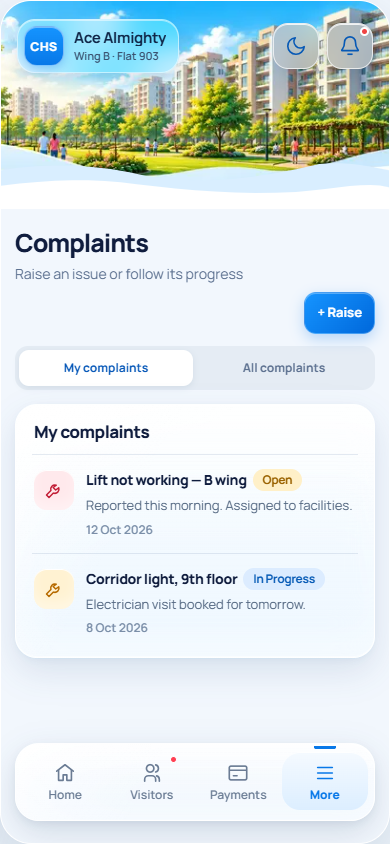
Android: install from chsdesk.com/get-app. Allow notifications when asked. The same APK works for every society. iPhone: use Safari at chsdesk.com/m. Residents: Home, Visitors, Payments, Notices, Complaints, and More. Home uses the Community light layout by default; tap the moon chip next to the bell for Evening dark. If visitor management is on, a guest at the gate rings until you Approve or Deny. When phone calling is turned on and you do not answer on the app, your mobile is called: press 1 to approve or 2 to deny. Notices, bills, and complaints arrive as ordinary alerts — they do not keep ringing.
- Community is on More and on Home when the society has it on. My Society shows posts for your building. CHS Network shows only posts an author chose to share with other societies. Stories last a short time. Photo and Camera attach one picture to a post. Video and other files are not stored. Choose interests from the profile. Report, hide, mute, or block from the post menu. Office bearers review reports from that profile.
- Community Polls are everyday opinions. Formal AGM and SGM ballots stay closed until they are checked against the Act, the rules, and the bye-laws. A vote belongs to the flat membership you are signed in as. Switch flat if you need the other membership.
- Rent parking is an offer or a request inside your society. EV charging is a filter. A new listing waits for society approval before other residents see it.
- More also opens Marketplace, Parcels, Domestic help, Amenities, Family, Vehicles, Documents, Deals, Sale NOC for owners, and Move out for tenants.
- Settings lists every flat on this login as flat and society. Ananya answers where a screen is. The phone Back button closes Ananya before it leaves the page. Names use letters. A mobile number is 10 digits and does not start with 0.
If Android ever asks for Display over other apps, cancel it. CHS Desk does not need that permission.

Sanjay 👋
Your society, at a glance.
Signed in as Treasurer
Quick Services
See all
Sanjay 👋
Your society, at a glance.
Signed in as Treasurer
Quick Services
See allResident phone home — Community light and Evening dark
Gate, security, and daily jobs
Put one Android phone at the gate cabin, logged in as Security, with notifications allowed. Both 12-hour shifts use that handset. Do not install the security login on every guard’s personal phone — daily jobs would ring all of them.
Visitors
- Sign in as Security on the phone (or Gate on the website).
- Add the visitor against the flat. Rear camera for photos.
- If Visitor management is on, walk-ups wait for the flat to Approve or Deny. If they do not answer on the app, phone calling can ring their mobile. If only Gate Register is on, the entry is written to the log with no ringer.
- Mark exit on Gate Log.
Job alerts
- Office bearers open Job alerts and add a job: title, time, and assign to Security or Housekeeping — not a named person.
- Choose daily, weekly, or one time.
- At that time the shared phone rings until someone taps Done (job closed) or Snooze (rings again in 10 minutes).
FAQ
- How does CHS Desk work?
- The managing committee opens a society desk on chsdesk.com, imports members and flats, and turns on the services they need — maintenance, Gate Register, visitor ringer, complaints, notices, amenities, documents, Community, Community Polls, rent parking, marketplace, parcels, and household staff. Each person signs in with their own mobile. Residents use the Android app (or iPhone Safari) and the resident portal. Security uses one shared gate phone. Staff see complaints and notices, not the bank.
- How do residents pay maintenance?
- Residents open My bills on the website or Payments on the phone app. Where UPI is set on the society, they pay from the bill and can mark I have paid. Cash, NEFT, and cheque are recorded by the treasurer. A UPI tap is not payment until the office confirms the bank credit on Accounts, Maintenance, or Books.
- How does visitor management work?
- If only Gate Register is on, the watchman logs who entered and left — no ringer. If Visitor management is on, the resident’s Android app rings until they tap Approve or Deny — the gate cannot self-approve walk-ups. When phone calling is turned on and the flat does not answer, their mobile is called. They press 1 to approve or 2 to deny. That call still works when the app is closed or the phone has no internet. Expected guests can be added in advance. Security then marks entry and exit. The office sees the same register under Visitors.
- How do residents get the phone app?
- On Android, install CHS Desk from chsdesk.com/get-app and allow notifications. The same app works for every society. iPhone uses Safari at chsdesk.com/m — there is no App Store build yet. Do not turn on Display over other apps; the visitor ring uses the normal notification permission.
- Who gets daily job alarms at the gate?
- The committee assigns a job to Security or Housekeeping as a desk, not to a named person. Keep one shared smartphone at the gate cabin, logged in as Security. The morning and night 12-hour guards use that handset. Tap Done when the job is finished, or Snooze to ring again after 10 minutes.
- Can multiple committee members use CHS Desk?
- Yes. Chairman, secretary, treasurer, and other managing committee members share one office desk. Each person has their own login. What they can see follows the post — the treasurer has the books; a committee member may not. Appoint extra seats on Committee after you go live.
- Does CHS Desk support WhatsApp?
- Yes. After a Meta WhatsApp Cloud API number is connected, the secretary can publish a notice and send it to members who have a mobile on the register. You can use the CHS Desk platform number or the society’s own WhatsApp Business account. A utility template (default name society_notice) with three body variables must be approved in Meta Business Manager before sends succeed.
- Can a society import existing member data?
- Yes. Upload one CSV with Wing, Flat No, Owner Name, plus optional mobile, email, occupancy, flat type and carpet. Put A, B, C (or BETA) in the Wing column — each distinct wing becomes a building. The onboarding Flats step creates the flats and owners together. You can still use separate 02_Flats.csv and 03_Members.csv files if you already have them.
- Can a society have more than one wing?
- Yes. One CSV covers the whole society: each row’s Wing column is the building. Flat 101 in A and 101 in B are different (A-101 and B-101). On the Flats step you can also Add another wing and generate numbering for all wings at once.
Screenshots show sample society data. Your names, flats, and amounts will differ. CHS Desk is a product of CLEVERBOOKS TECHNOLOGIES LLP. chsdesk.com